

Office 365 Installation Instructions
To install Office 365:
- Uninstall any version of Office currently on your computer (see Office Uninstall Instructions for assistance).
- Go to m365.cloud.microsoft/apps.
- Sign in using your NetID@msu.montana.edu for faculty/staff/student workers or NetID@student.montana.edu for students.
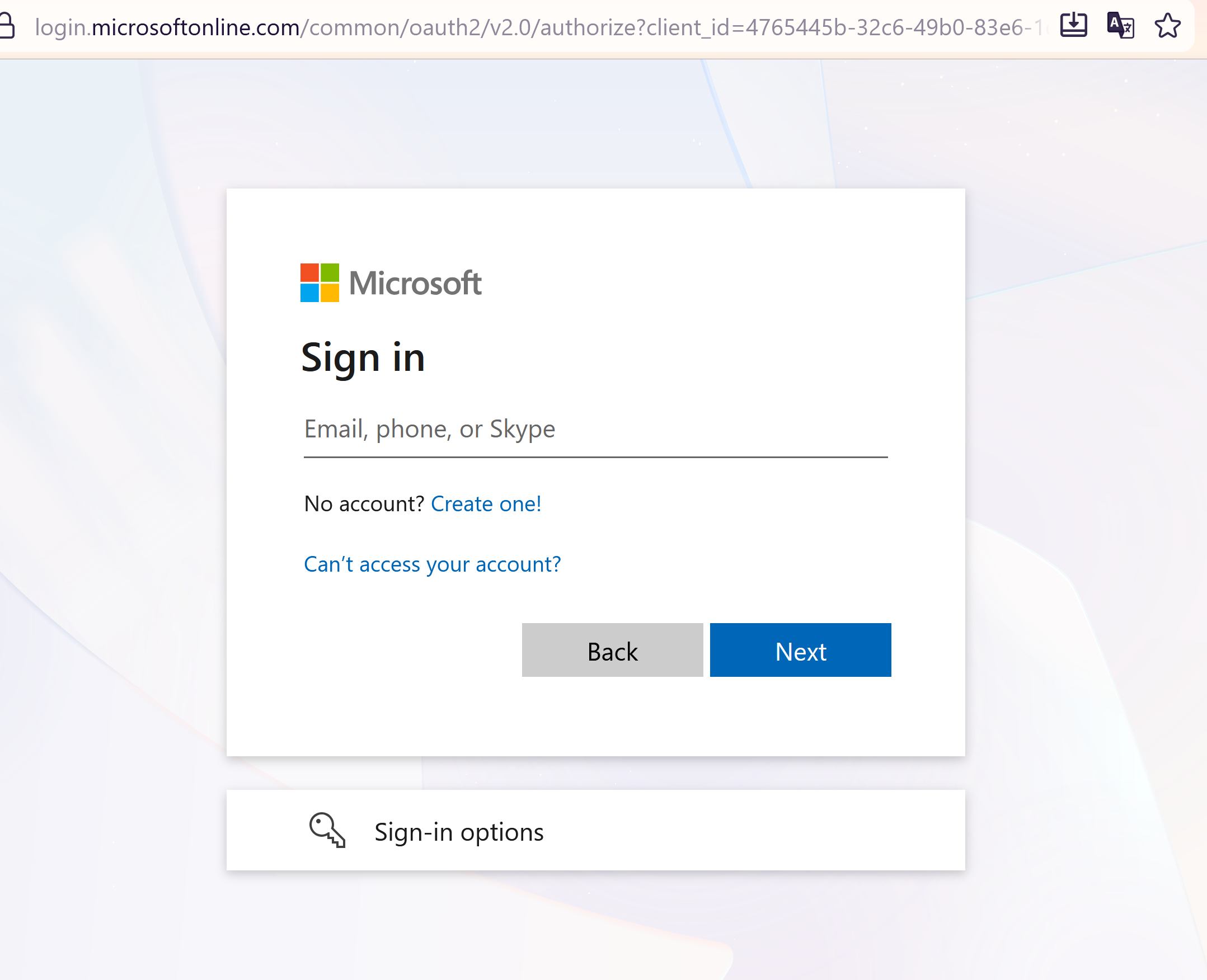
You will be redirected to MSU's login page. - Enter your NetID@msu.montana.edu or
NetID@student.montana.edu and NetID password.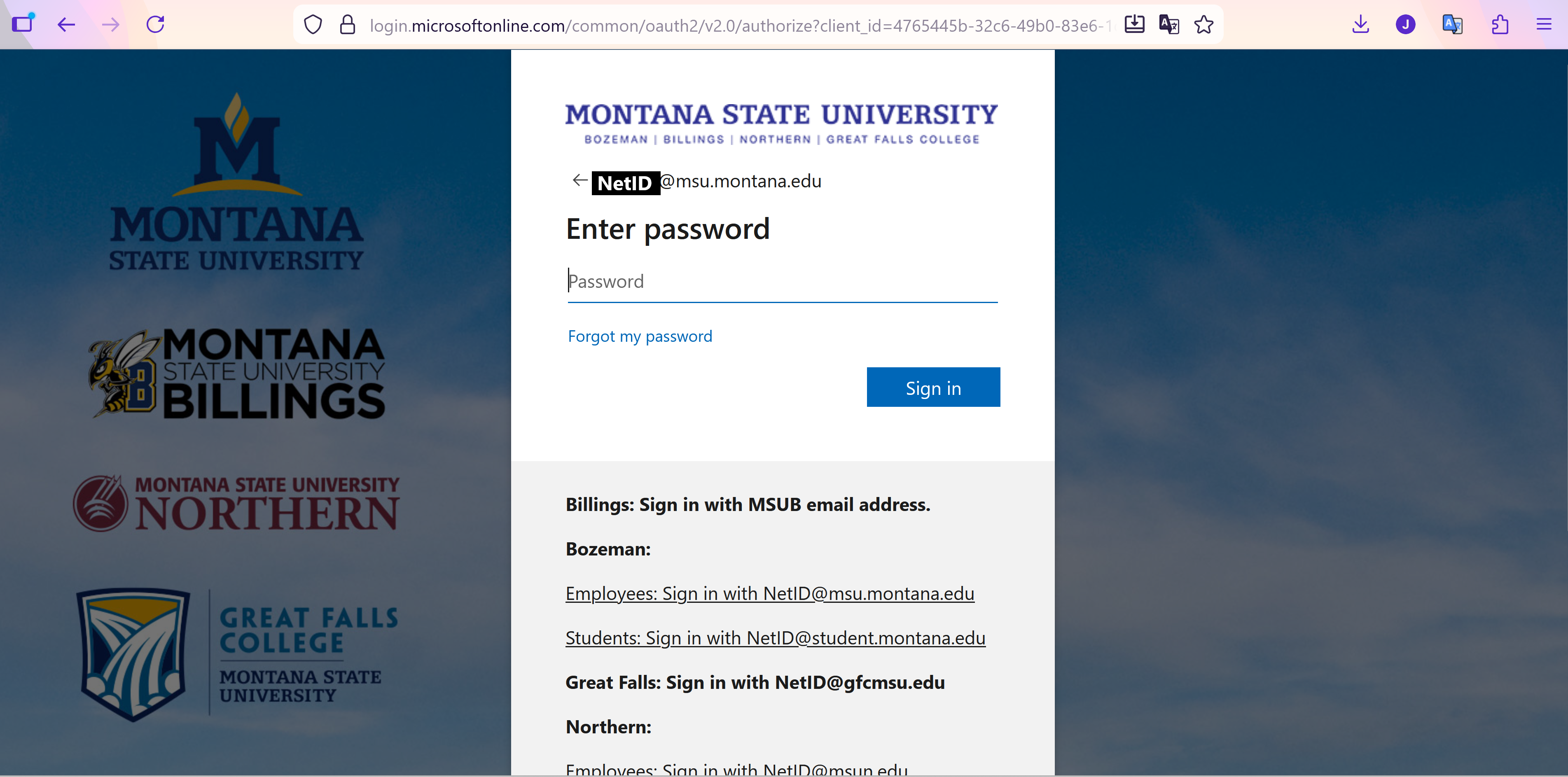
- You are now logged in to your Microsoft 365 Account and will be directed to the Apps
page.
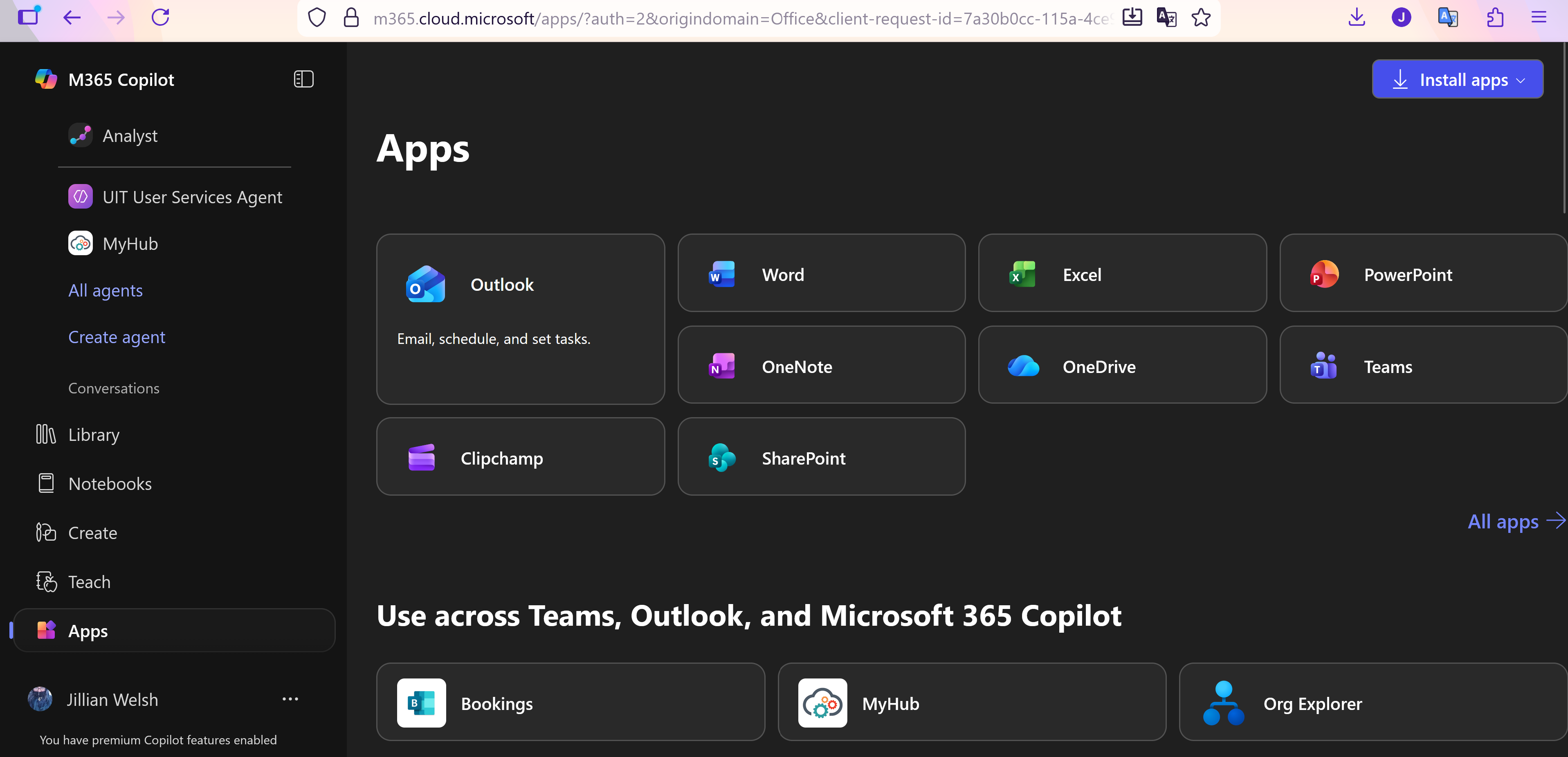
- Click the Install Apps drop-down button at the top right corner of the page, then Microsoft 365 apps at the top of the list. The button may be a different color if you have selected a theme other than the default.
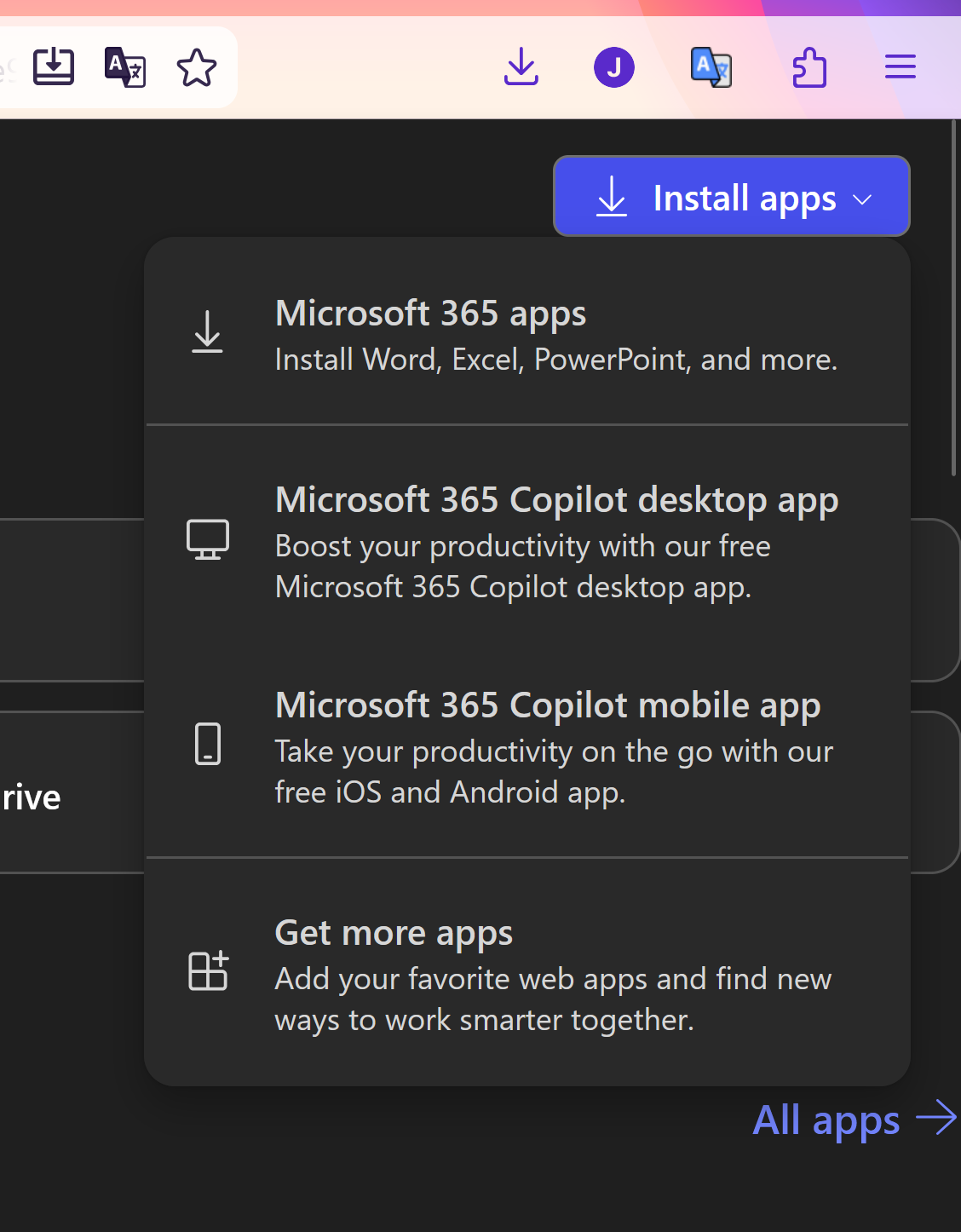
- You will be taken to your account page. Under Office apps & devices, select Install Office.
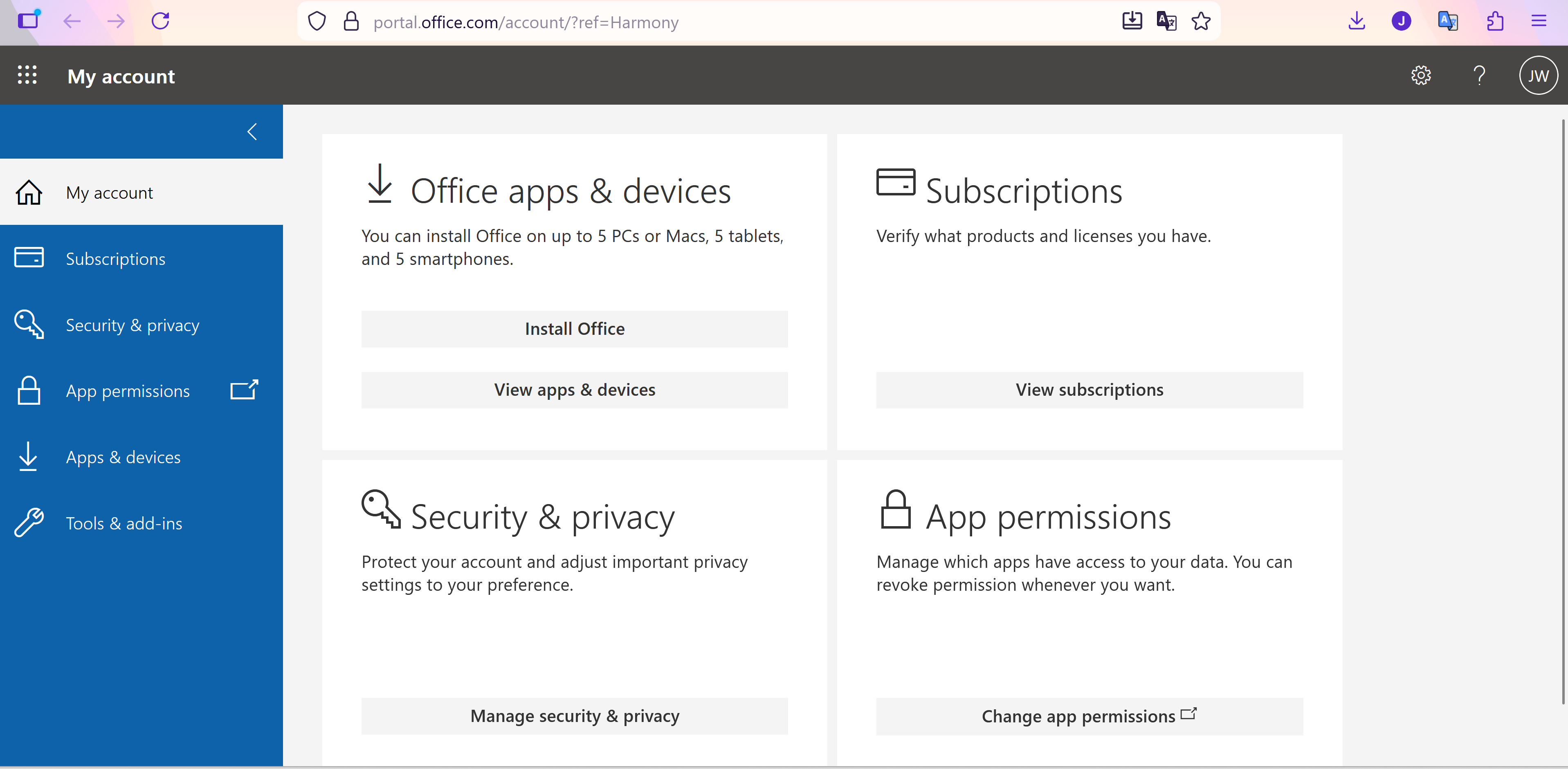
- Depending on your browser, go to the install pop up that appears:
- click Run (in Internet Explorer)
- click Setup (in Chrome)
- click Save File (in Firefox)
FIREFOX USERS: after file has downloaded go to your downloads folder and double click the .exe file to open then click OK.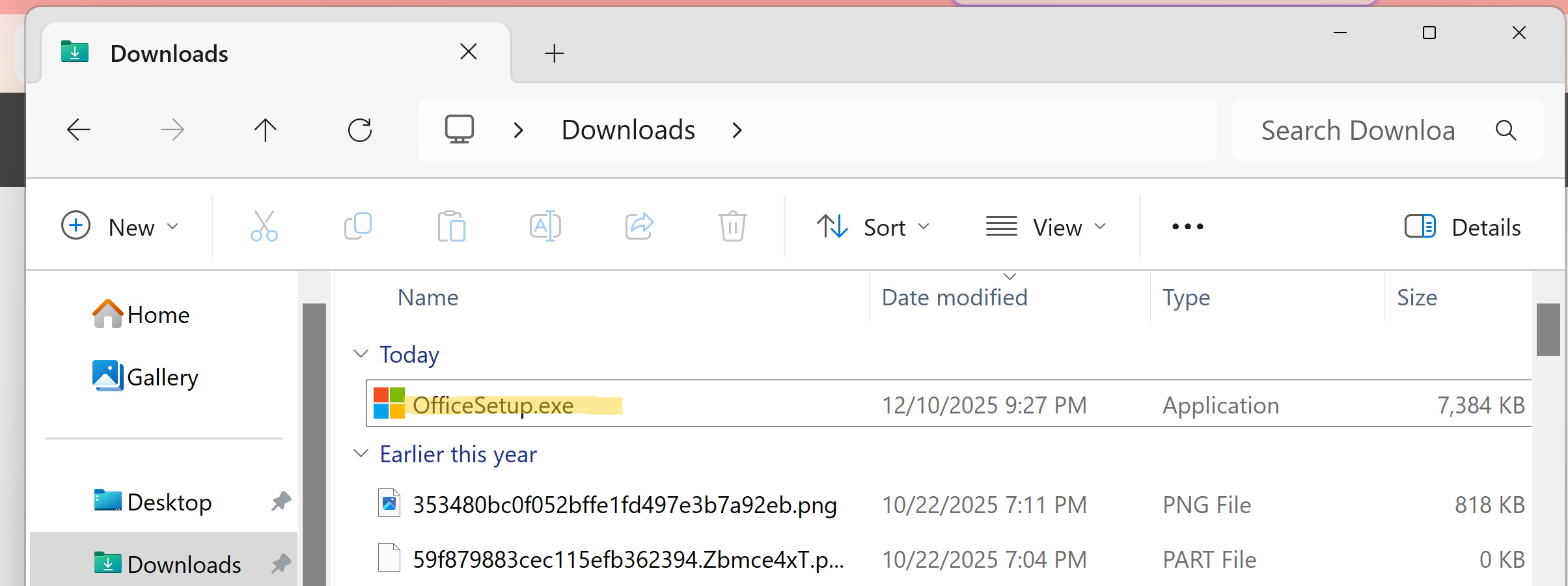
- Click Yes, when prompted to allow changes be made to this computer.
If you are prompted for an administrative password for your computer and don't know it, contact the UIT Service Desk, 406-994-1777.
Office will begin downloading, although the download process takes a bit of time you will be able to access and run programs about 5 minutes after you begin.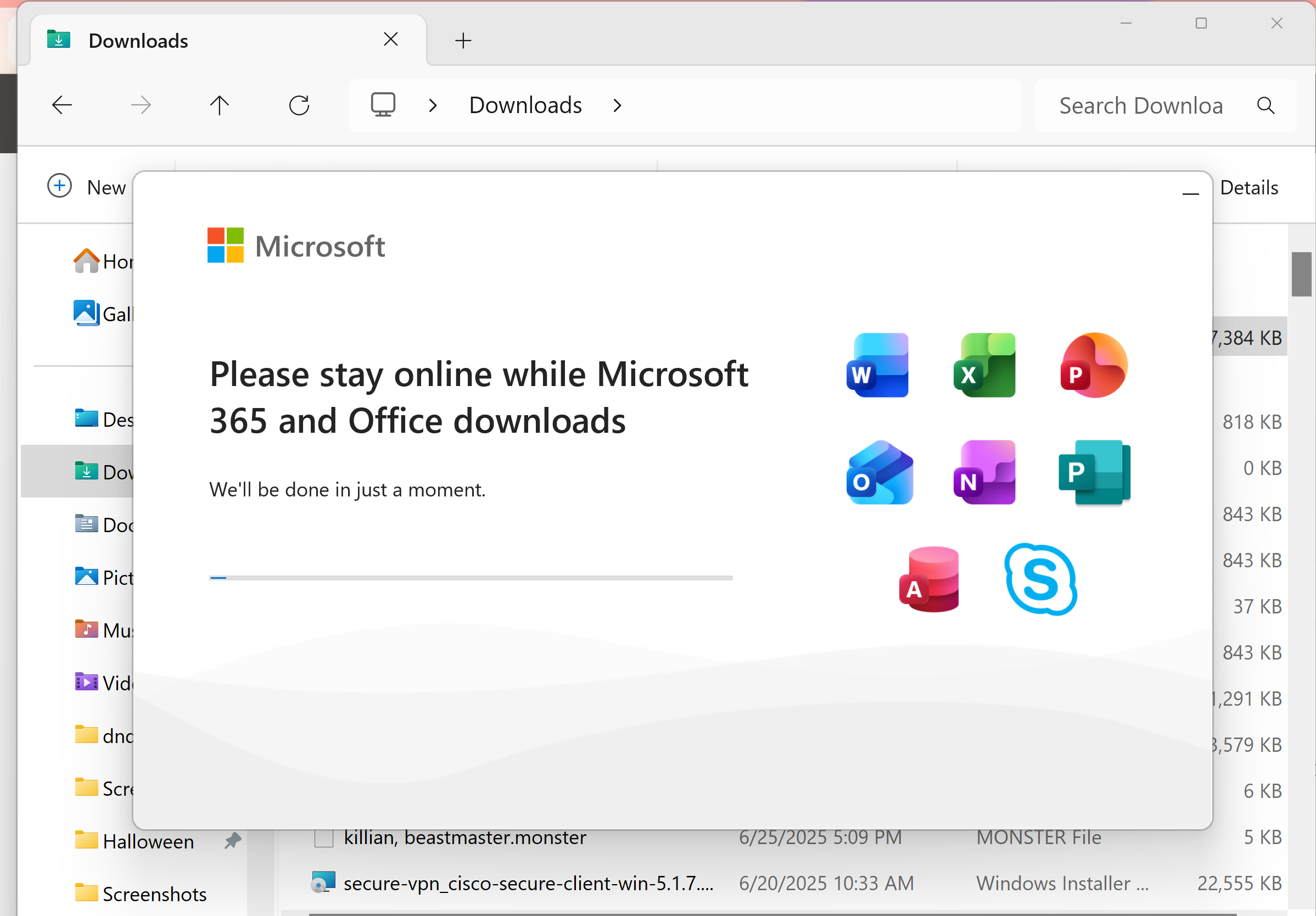
- When installation has completed, you will recieve a success notification. You may
now click the Close button.
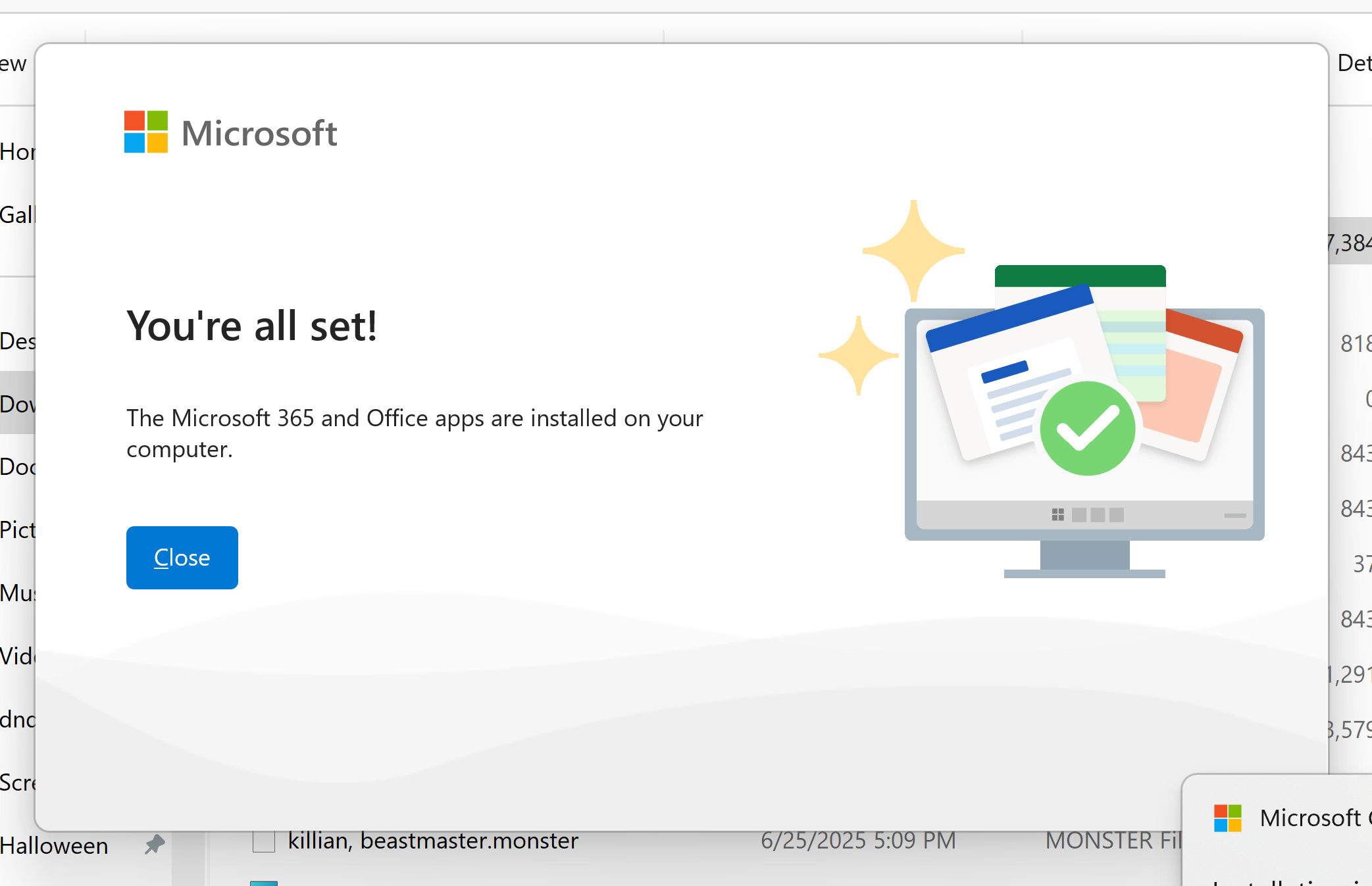
This will complete the installation process.
NOTES:
- The first time you open an Office application you will be prompted to 'accept' the Microsoft Office License agreement and restart any open Office applications.
- The first time you open Outlook it may take up to 30 minutes for your profile to load.
To install Project and/or Visio:
NOTE: Project and Visio are only available for faculty and staff use.
Contact the helpdesk and ask for this software. You will be allocated a license and you can then run it in the cloud, or optionally choose to download it to your desktop and you can run it there.
Contact the IT Service Desk if you need this software (406)994-1777 | helpdesk@montana.edu