

Read&Write Gold
Please note that TextHelp has merged with another company and will now be called Everway. The company is in the process of updating branding, URL's etc.
Read&Write Gold (RWG) is literacy support software. 
It provides tools that can be used online or in desktop apps that:
- read on-screen text
- look up definitions
- help with vocabulary
- turn documents and web pages into MP3 files
- assist with research and much more
Once installed, the Read&Write Gold customizable toolbar can be integrated and used with applications like Microsoft Word, web browsers (like Internet Explorer and Chrome), Adobe Reader (PDFs) and many others.
Who is eligible to download RWG?
MSU faculty, staff, and students.
Platform/OS Support
The MSU license provides RWG software for Mac and Windows computers and iPad and Android tablets*. Software may be downloaded on MSU-owned and/or personally-owned computers.
See the RWG feature matrix for information on the various features available on apps by OS.
Download & Installation Instructions
To download software or make changes on an MSU-owned Windows device, faculty, staff, and student employees/graduate assistants must use Make Me Admin, a tool that allows users to perform privileged actions on a temporary basis.
Read&Write Gold can be downloaded for all available platforms on the Everyway website here: https://my.texthelp.com/Install/Start
- Select "I don't have a product code", then click Continue

- Select "Read&Write" from the menu, then which opperating system you are using, then
click Continue
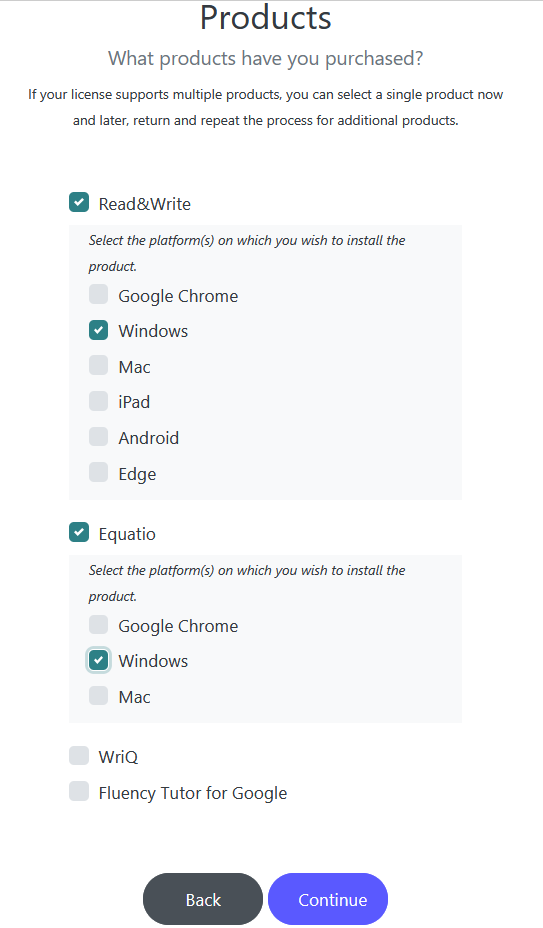
- MSU also has licenses for Equatio, a math accessibility solution. You can select both if wanted
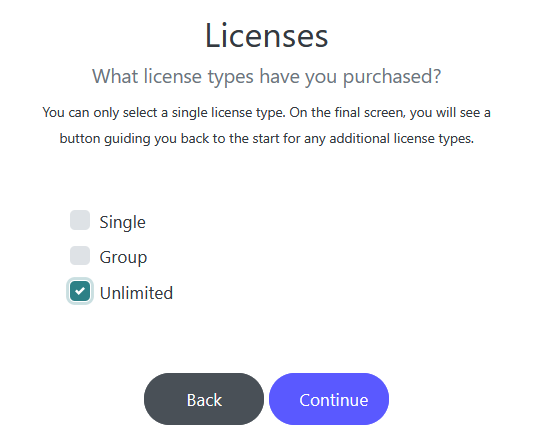
- Select "Unlimited" for your license version, then click Continue
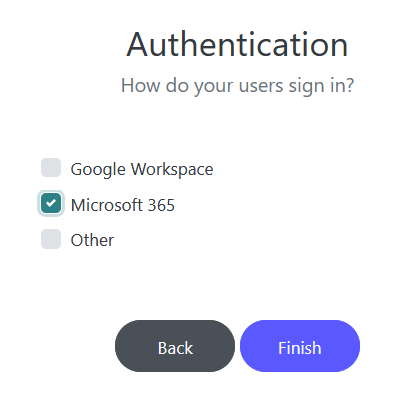
- Select "Microsoft 365" as your authentication method, then click Finish
- Click the version you want to download; select the language you want to use when the
pop-up appears
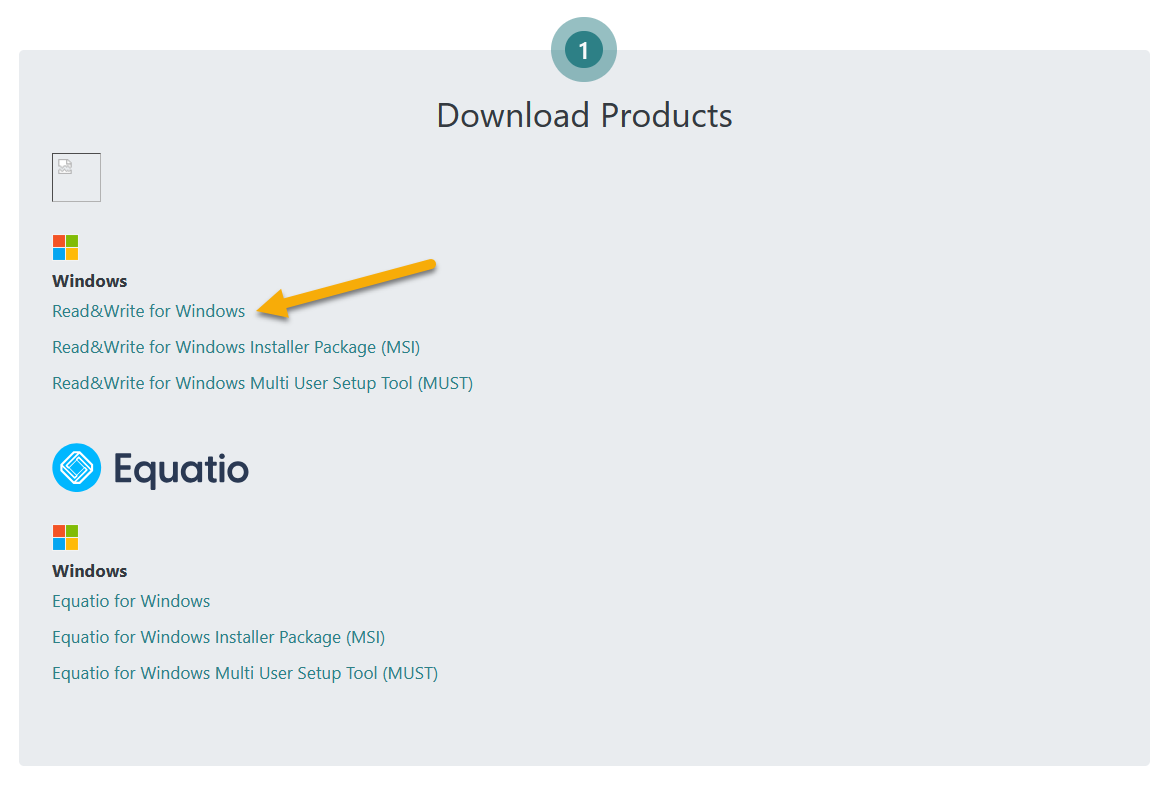
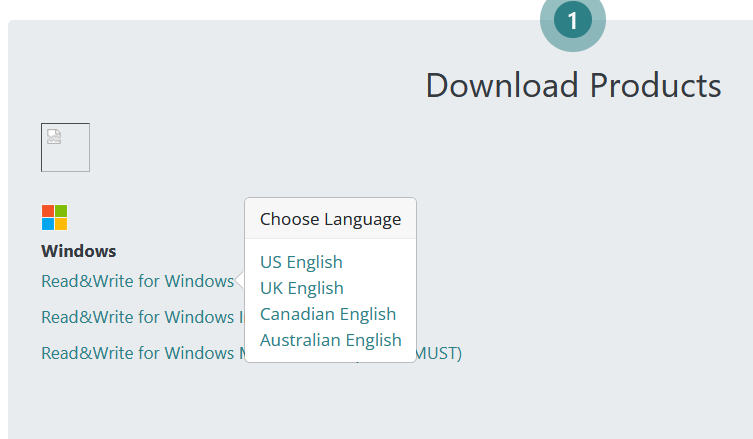
- This will download the install package
- Before install, log in to Make Me Admin
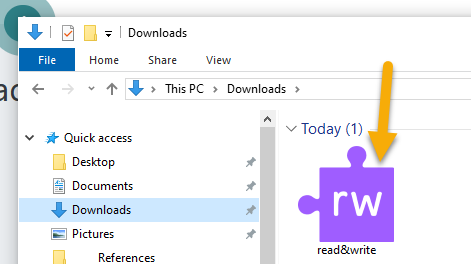
- Under Downloads, open Read&Write; this will start the install process
- you will need to validate using your NetID and password
- Click "Accept and Install"
- Once installed, run the software
- a little tab will appear at the top of your screen; you can move this around
- click the purple RW puzzle piece symbol to open a login tab in your internet browser
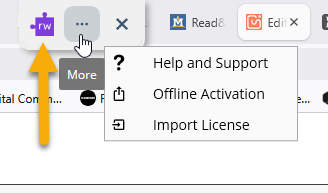
- click the purple RW puzzle piece symbol to open a login tab in your internet browser
- a little tab will appear at the top of your screen; you can move this around
- Select the Microsoft 365 login option
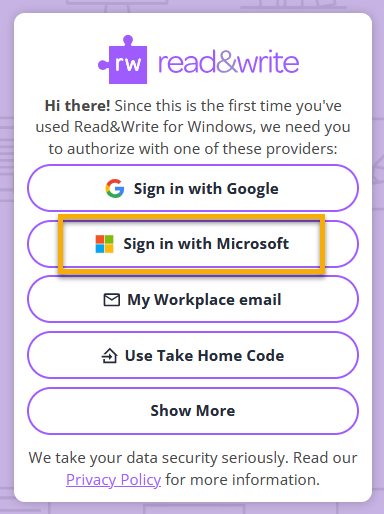
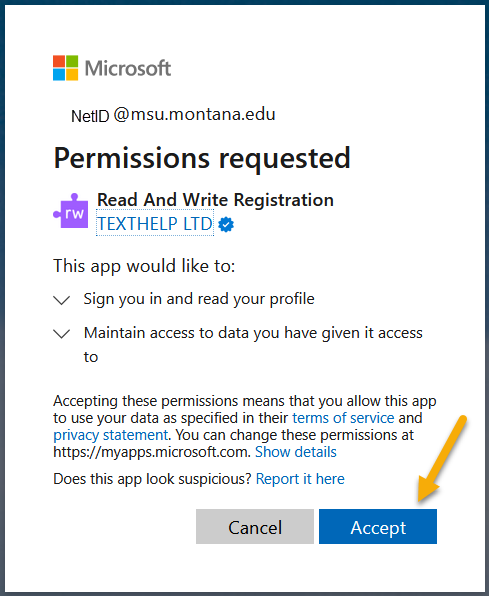
- Sign in with your your netID email address and password
- Allow Read&Write to access your profile
- Once logged in, the application bar will appear at the top of your screen

- this bar can be shrunk to take up less space

- this bar can be shrunk to take up less space
- You're ready to go!
Read&Write Gold can be downloaded for all available platforms on the Everway website here: https://my.texthelp.com/Install/Start and following the same option choices as listed above for computers. It can also be found in any app store.
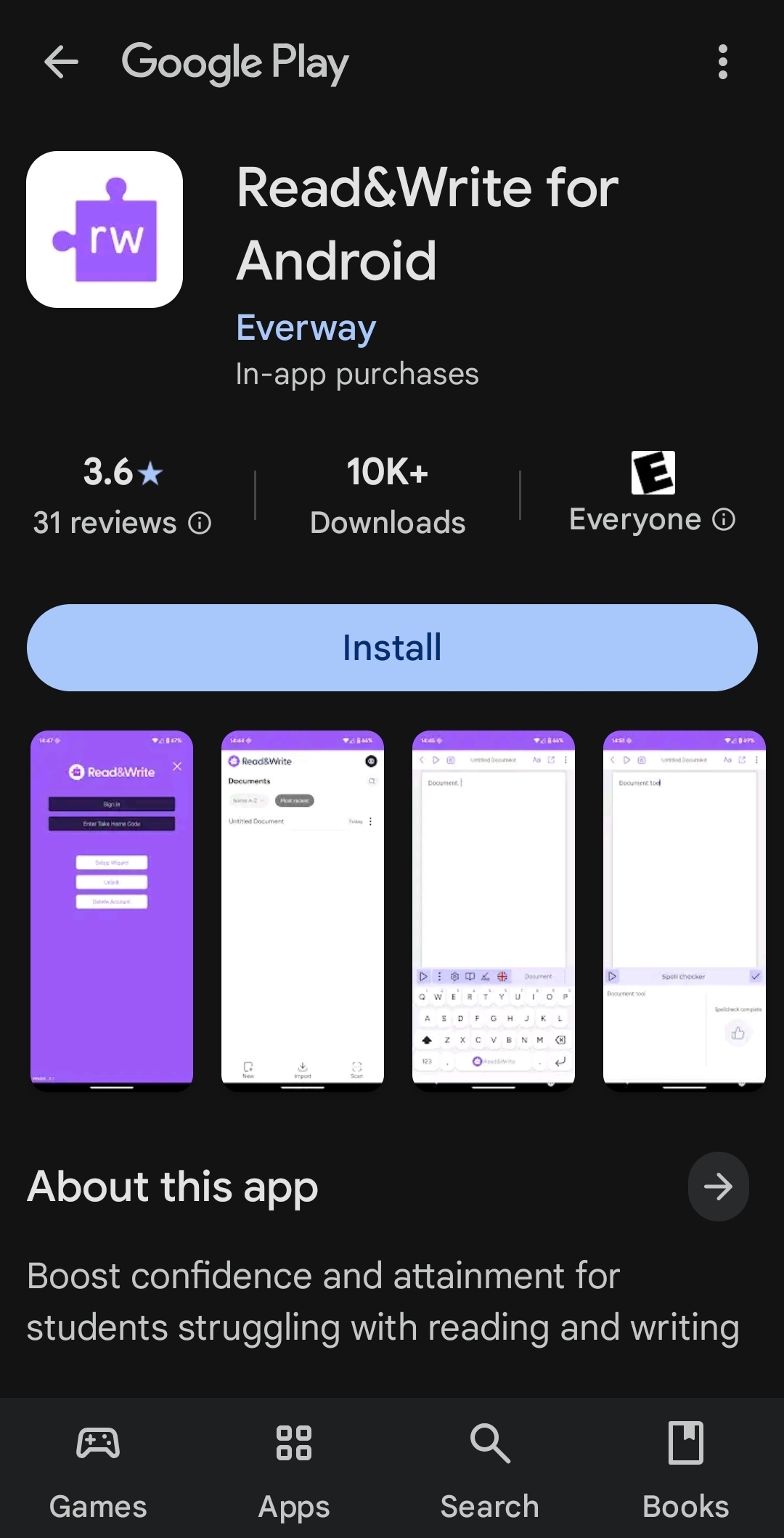
Follow the Setup Wizard.
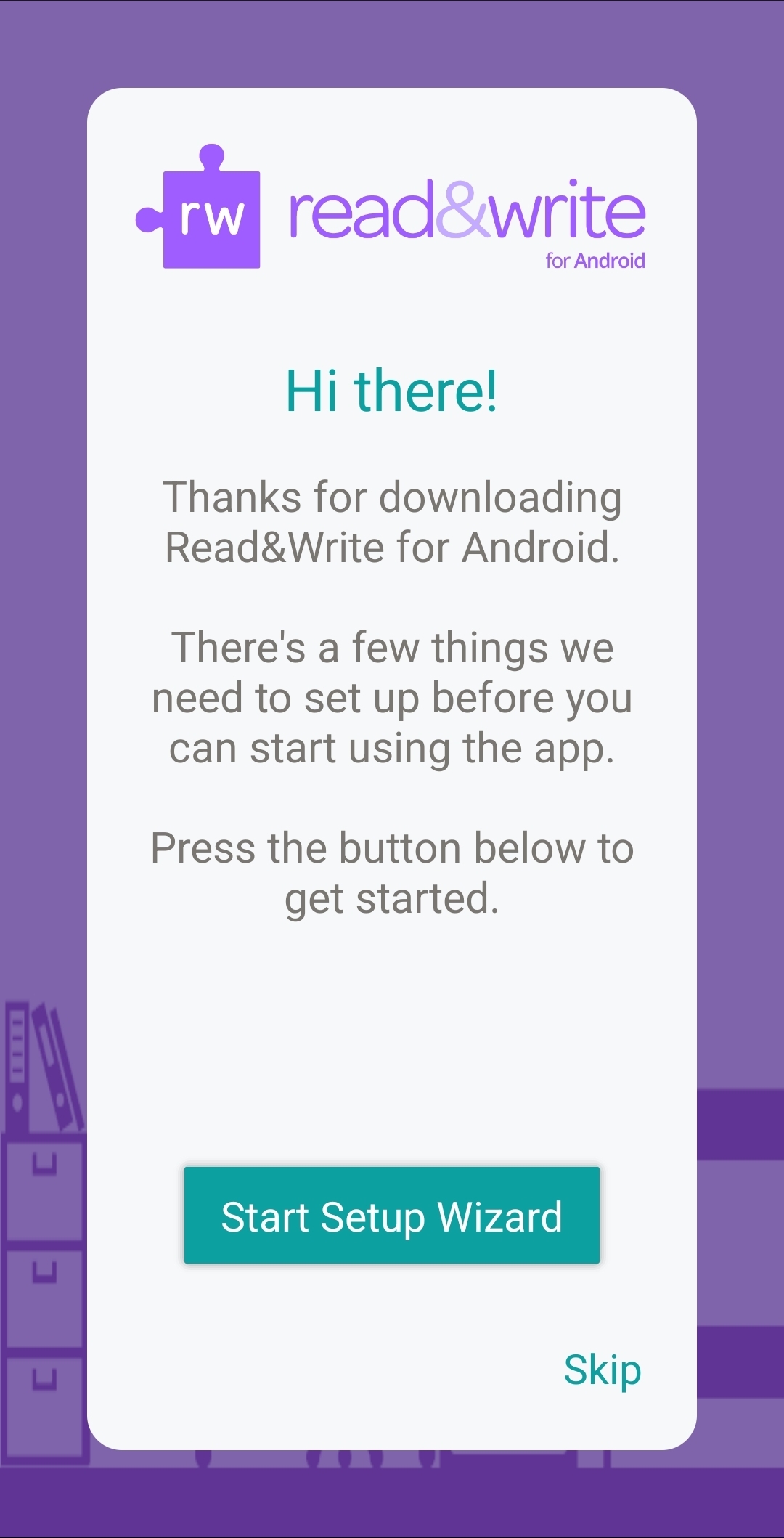
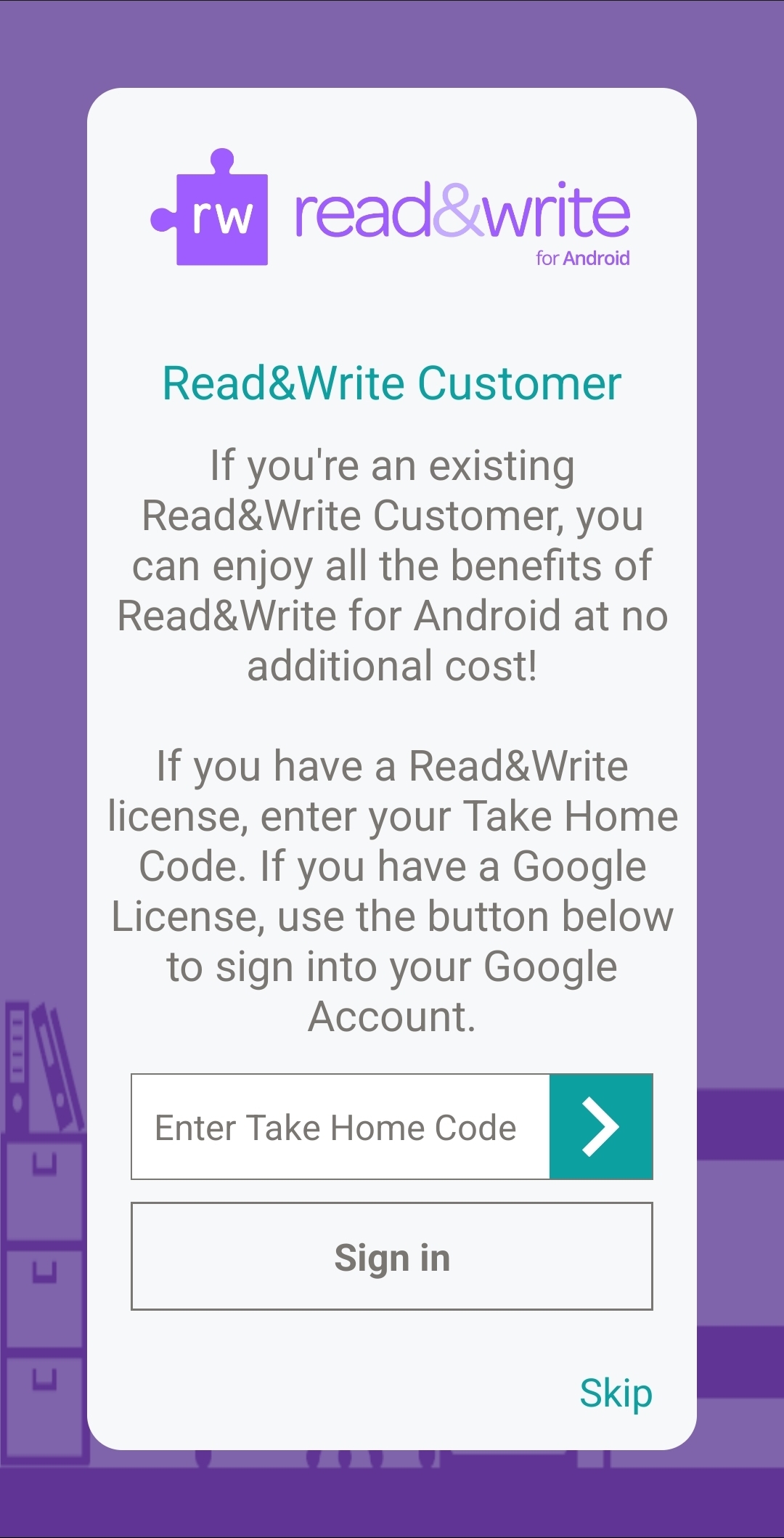
During the RWG setup process on iPad and Android, you will be prompted to "register"
or "link" the app to an existing Read&Write account or license, in order to take advantage
of all premium features.
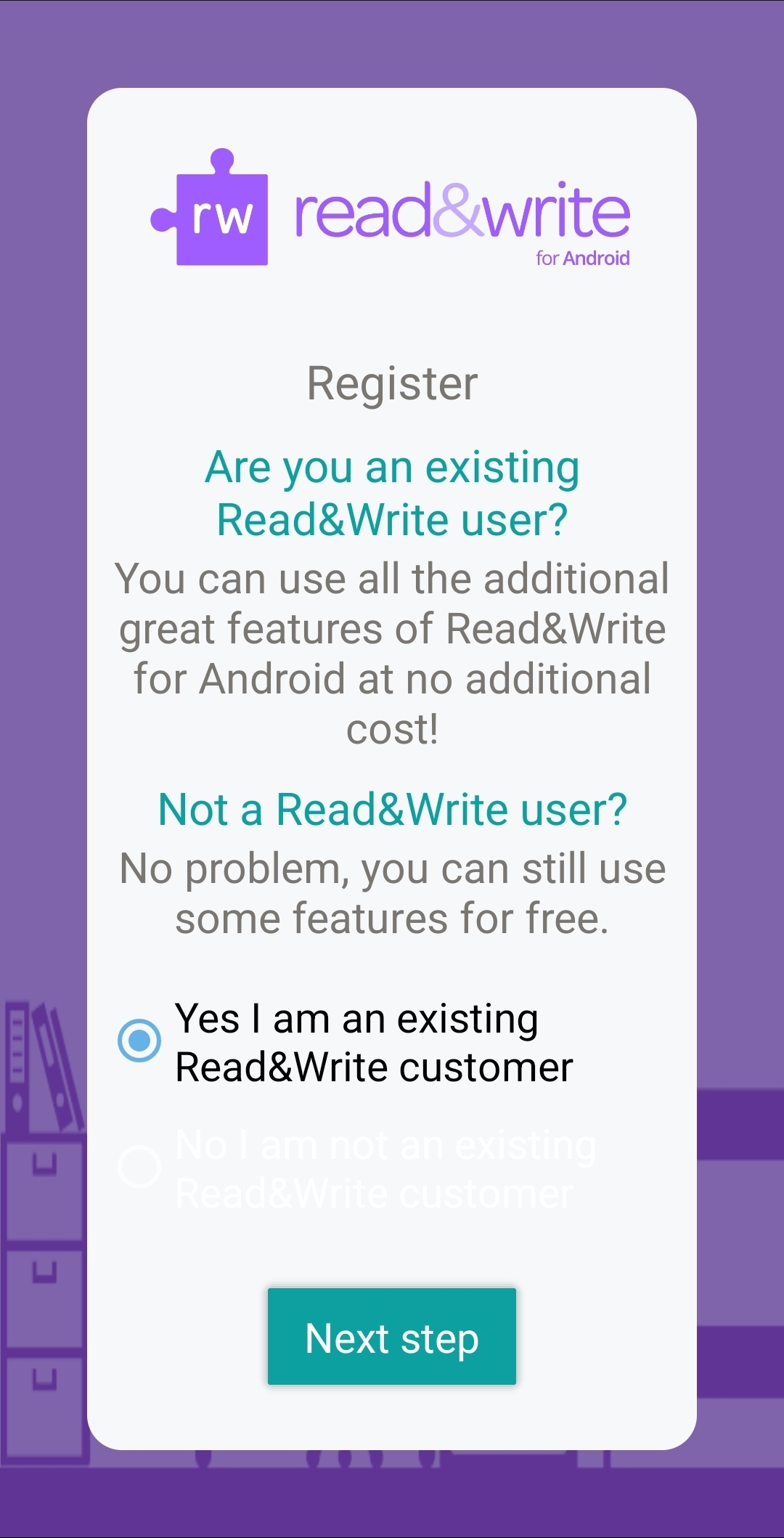
You will need a "Take Home Code".
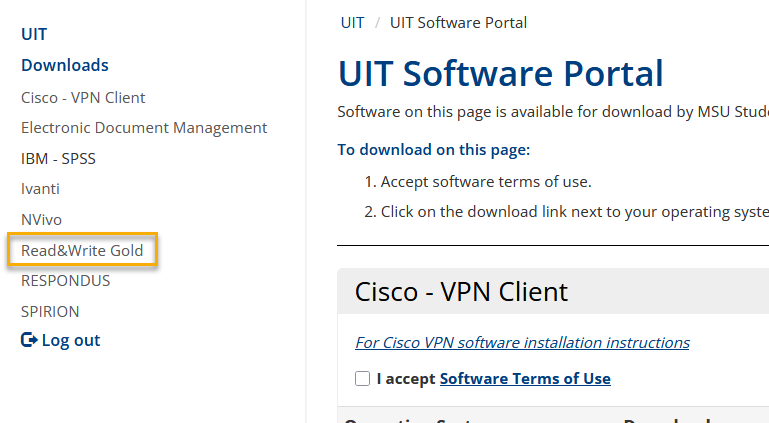
This code can be found by logging into the Software Portal at this URL https://www.montana.edu/software, finding the Read&Write Gold section, and downloading the file named "Read and Write Gold readme.txt file".
Make sure to check the "I accept Software Terms of Use" box before trying to download.
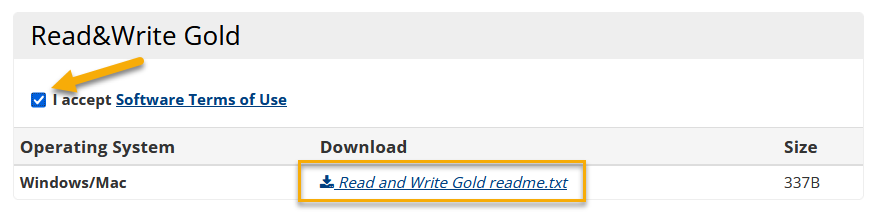
In this .txt file you will find the Take Home Code you will use to finsh tablet set-up.
Browsers
For Google Chrome Browsers / Chromebooks, users MUST either submit a helpdesk ticket to helpdesk@montana.edu or call the UIT Service Desk at (406)994-1777 to ensure this service stays activated.
R&W Gold for Google Chrome

Read&Write Gold can be downloaded for all available platforms on the Everway website here: https://my.texthelp.com/Install/Start
How to set up and use R&W on Google Chrome
R&W Gold for Microsoft Edge
Read&Write Gold can be downloaded for all available platforms on the Everway website here: https://my.texthelp.com/Install/Start
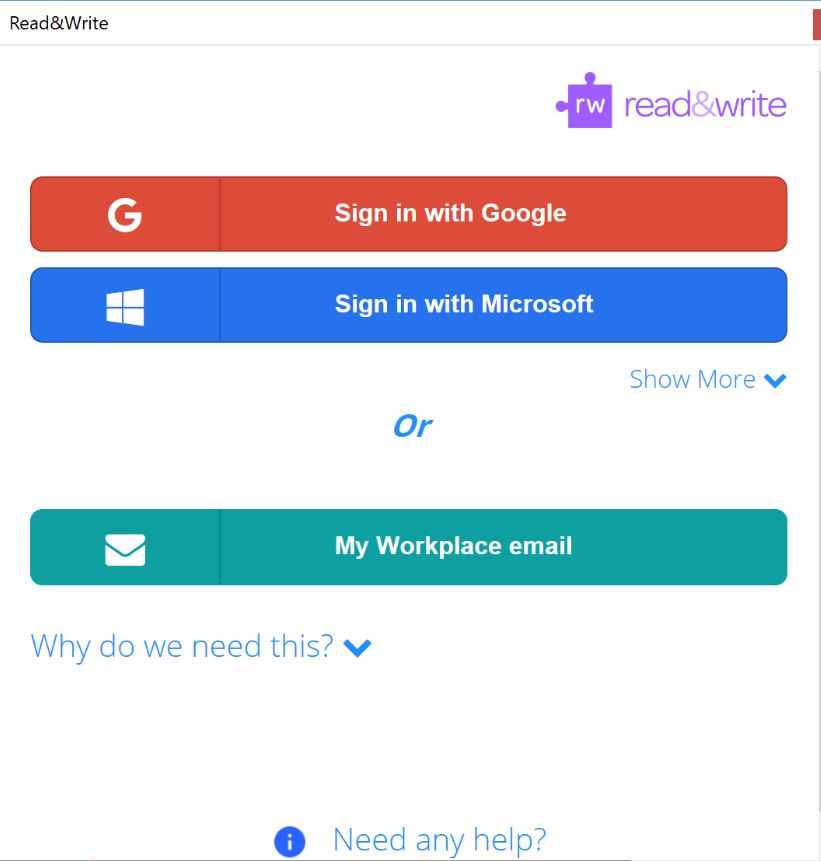
You will use the "Sign in with Microsoft" option and sign in with your NetID email and password.
Sign In Instructions
When prompted to sign in, select "Sign In with Microsoft" Thensign in with your netID email address and password
- e.g. a12b345@msu.montana.edu
Lab Installs
If you need to install Read&Write Gold for a lab, please submit a request to the helpdesk.