

Retrieve Canvas Quiz Questions for Respondus
In Respondus 4, Retrieval refers to downloading an exam, quiz, or question pool from an online learning system—such as Canvas—into the Respondus program on your computer. This allows you to save it as a printable document (like a Word file), edit it, or transfer it to another learning system.
How to Retrieve Questions
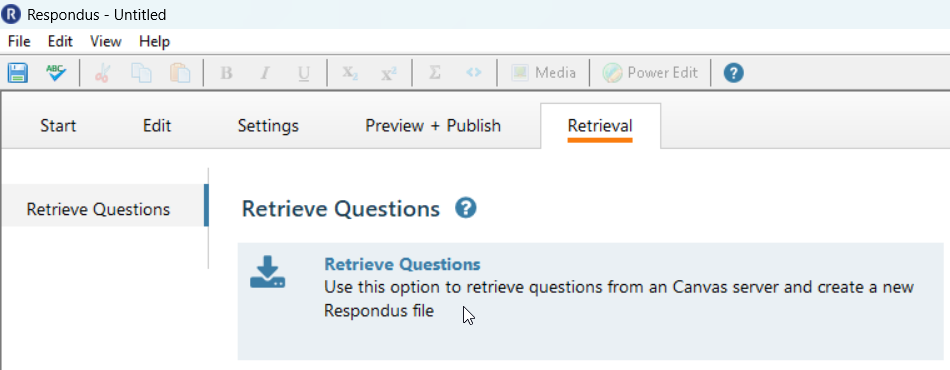
Retrieving assessment related questions from Canvas is initiated by selecting the Retrieval tab in Respondus and then selecting the Retrieve Questions button.
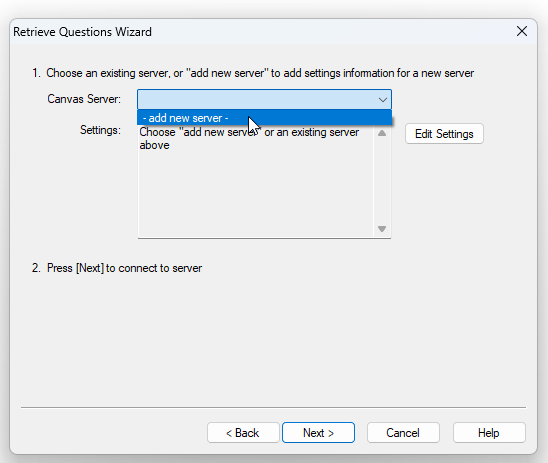
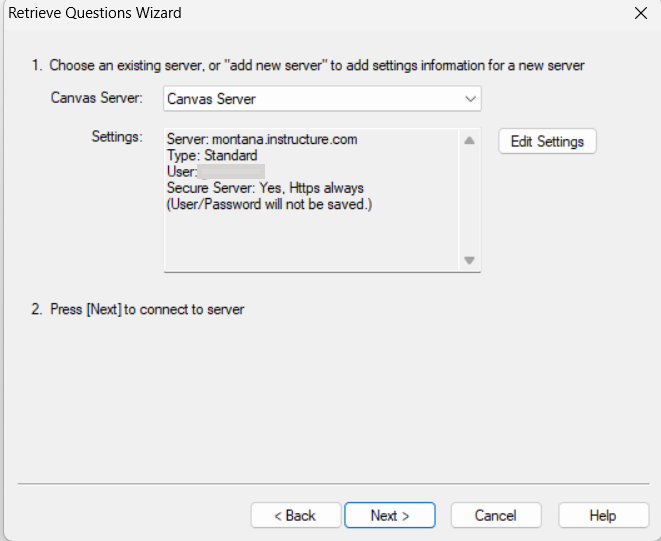
The Retrieve Questions Wizard displays. If the Canvas Server has not yet been used then from the dropdown, you will only see the option to add new server. Once you've set this up once, it will save and can be selected and used in the future.
If you have your Canvas server set up, you can jump to choosing your course and quiz.
Adding New Server
From the dropdown, select add new server
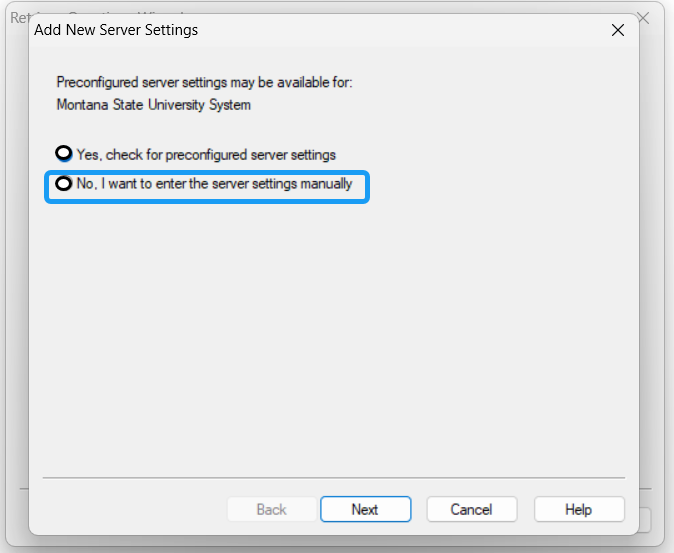
From the window that appears, choose No, I want to enter the server settings manually.
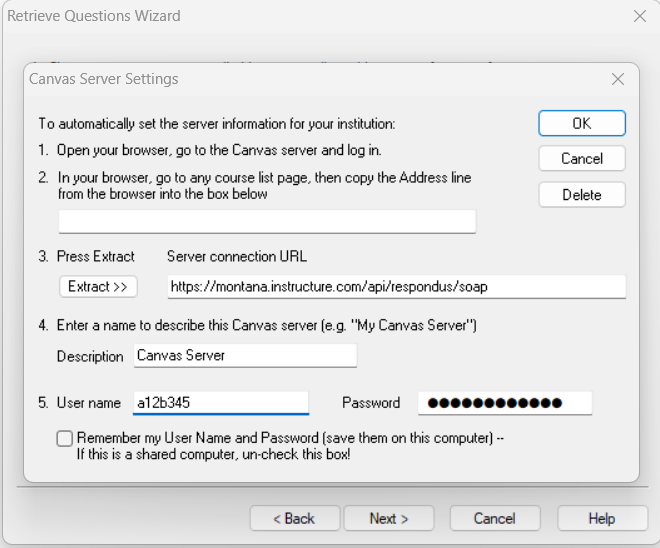
In the new settings window, complete the fields as seen below and then click ok
Field 3: https://montana.instructure.com/api/respondus/soap
Field 4: Description- chosen name for what you want to call this server ex. Canvas server
Field 5: User name and Password (NetID and Password)
Note: You can choose if you want respondus to remember your user name and passowrd
Once created, you can select the newly created server and click Next
Note: The connection may take a bit of time to establish - patience on the part of the user is advised.
Choosing Your Course and Quiz
If the server has already been set up to enable a user to connect to the Canvas server, choose that option from the dropdown and select Next.
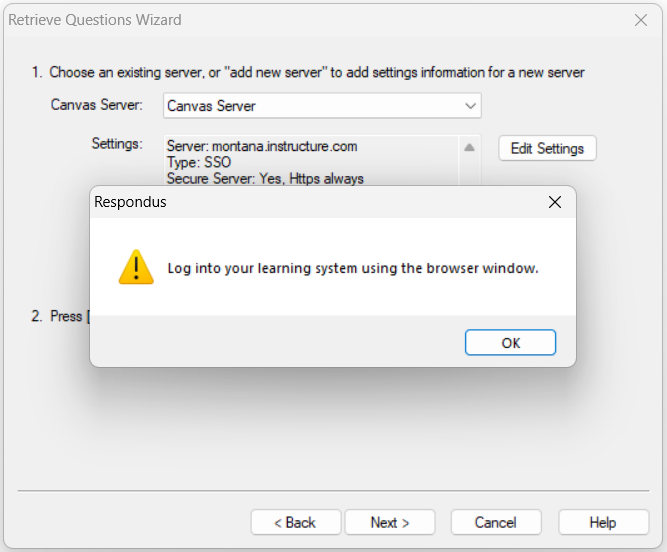
Users will then be prompted to Log into their learning system using the browser window.
Respondus will open a new window and users will be prompted to enter their NetID and Password to authenticate their account. Once it's open, return to Respondus and select Ok
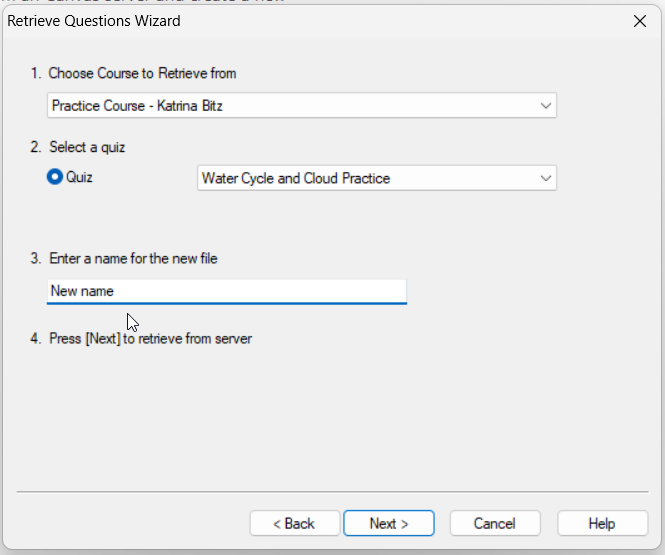
In the new window, complete the fields by using the dropdowns with the information from your Canvas account and click Next
The retrieval process will begin. When it finishes, a confirmation message will appear. Select Finish to complete the process.
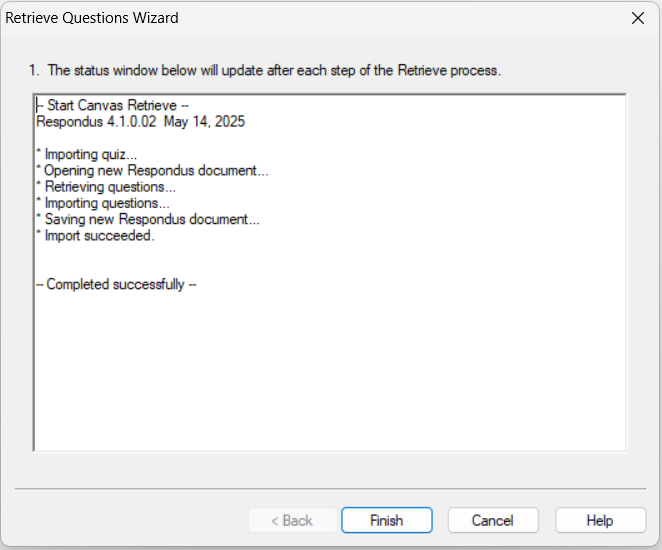
After a successful retrieval process, a .rsp (Respondus) file has been created which contains the retrieved questions. Now you can return to the main Respondus window to open, edit, print/save, and publish the retrieved questions. Review our tutorial to help you complete those actions.