
What-If
Thinking about changing your major, adding a major, minor, or a certificate? The What-If feature lets you explore different academic programs by showing how your current and planned coursework would apply toward another degree. You can even add future courses to see how they fit before making any official changes.
- Navigate to MyMSU
- Click on "Log in to MyMSU (NetID)" and login to the secure area using your NetID and password
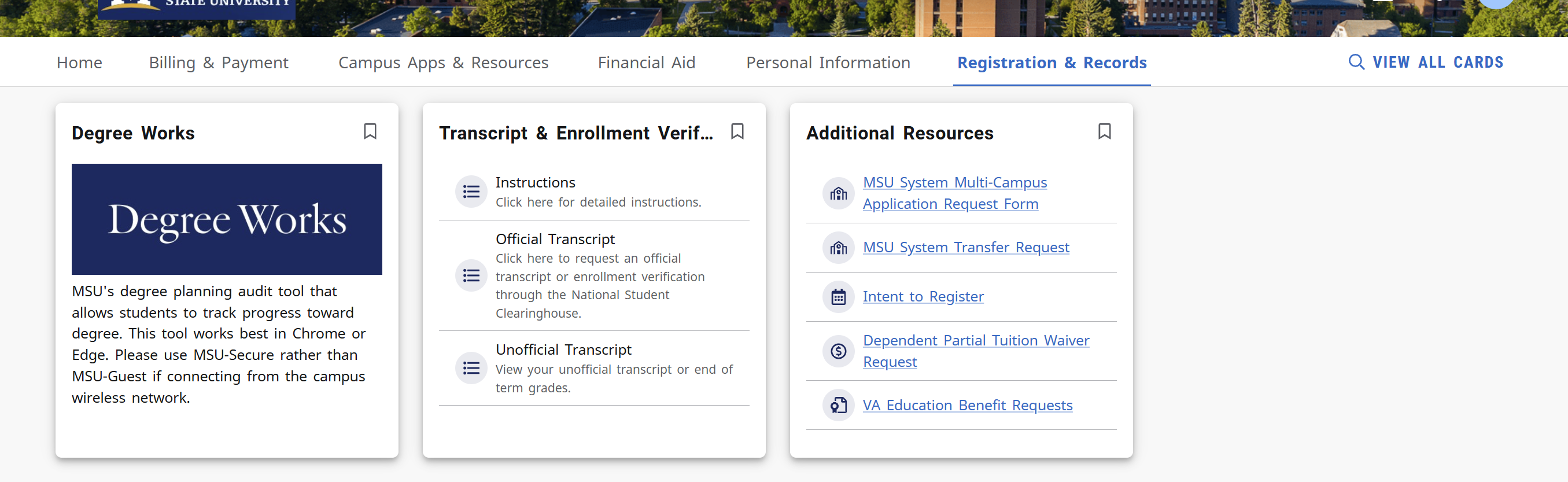
- Click on “Registration & Records”
- Click on “Degree Works”
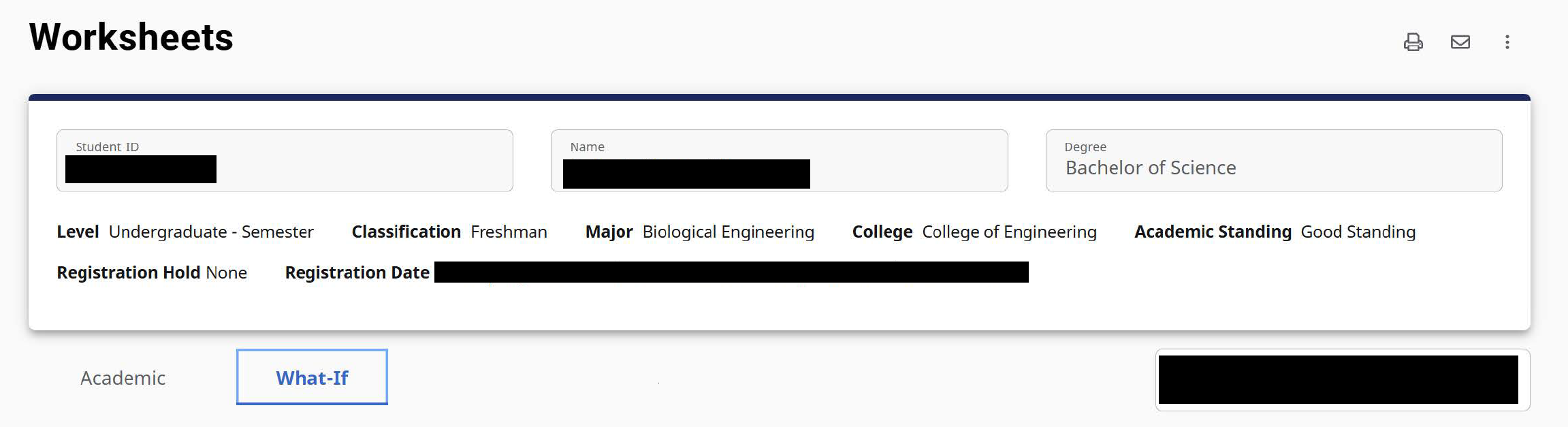
- To use the what-if feature, click on What-If tab under the student header.
- In-progress and Preregistered classes are selected and will be applied to the analysis. If you do not want to include them, you can deselect the check boxes for these options.
- Use the drop-downs to select the appropriate information for the program and areas
of study the student is considering.
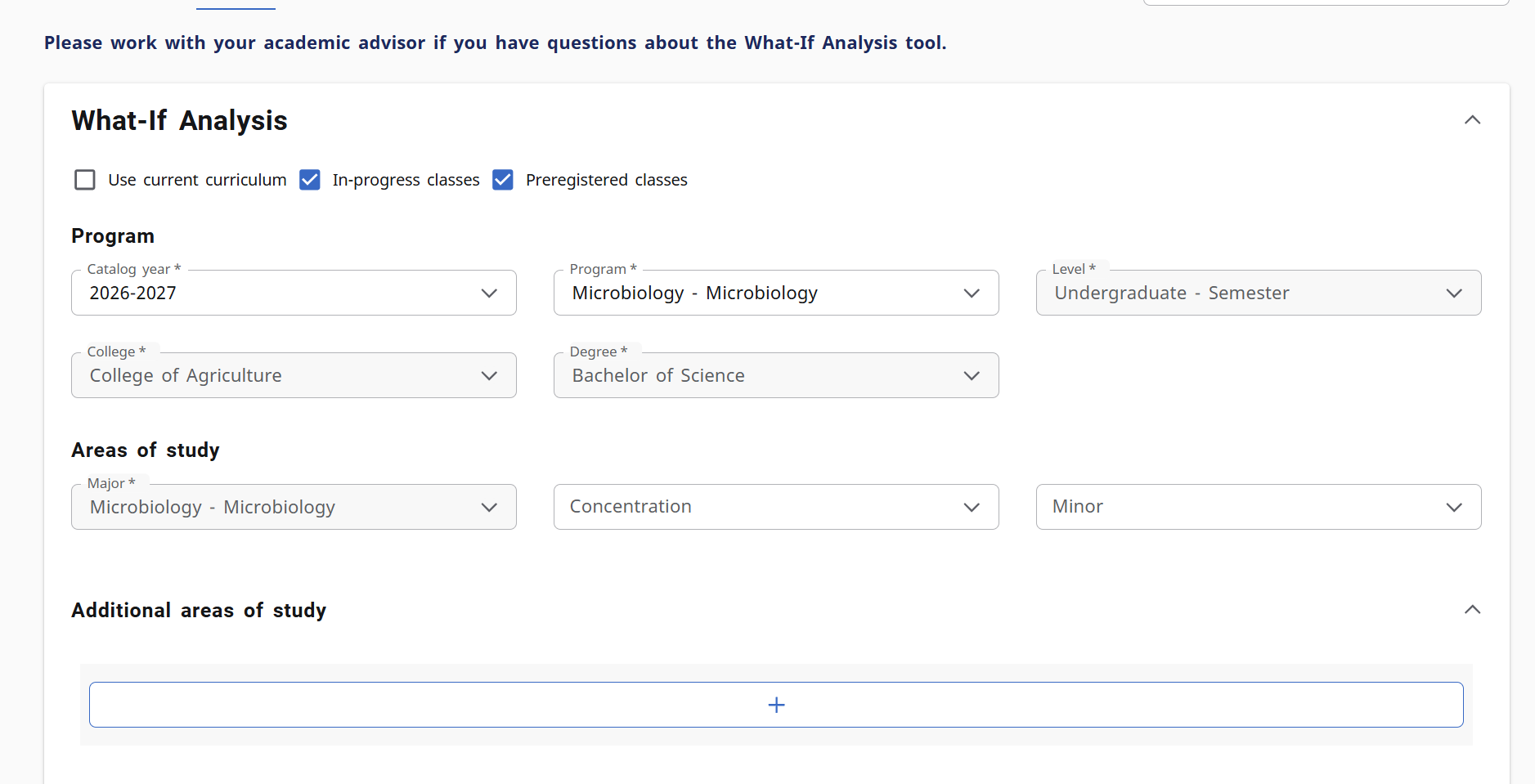
- If needed, select Additional areas of study to add another major, minor, etc.
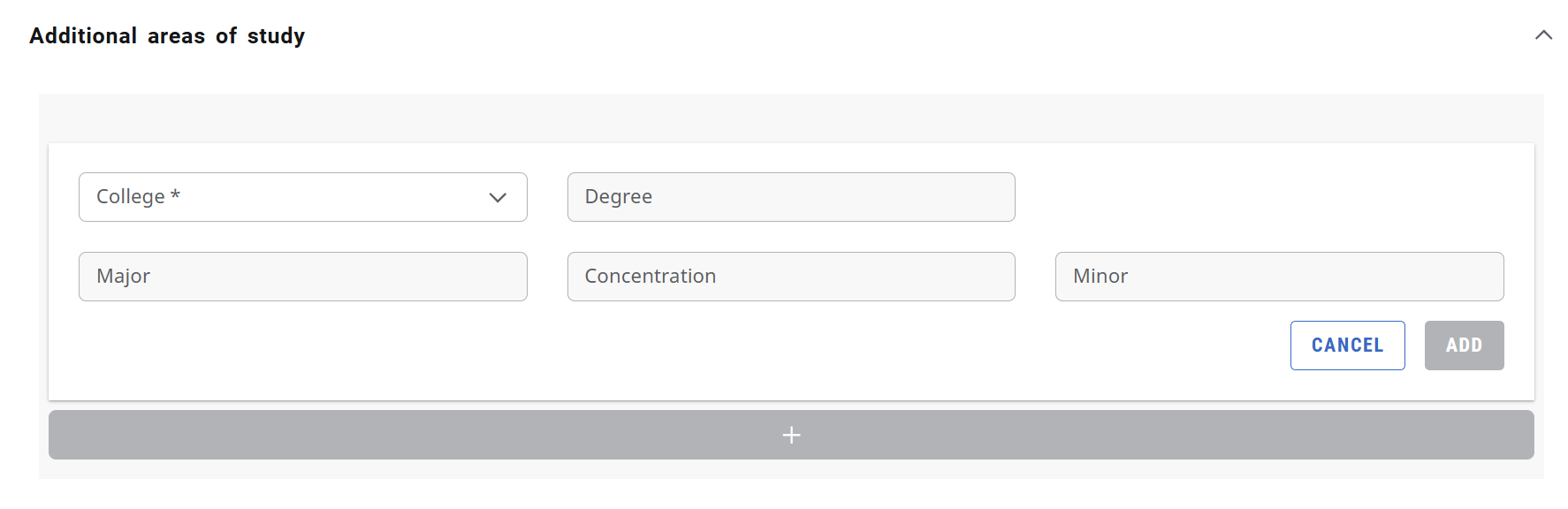
- OPTIONAL: Add future classes to see how individual courses might alter the student’s progress in the new major
- Select process. The What-If Analysis will appear with the alternative program’s requirements
and the student’s progress towards the requirements.
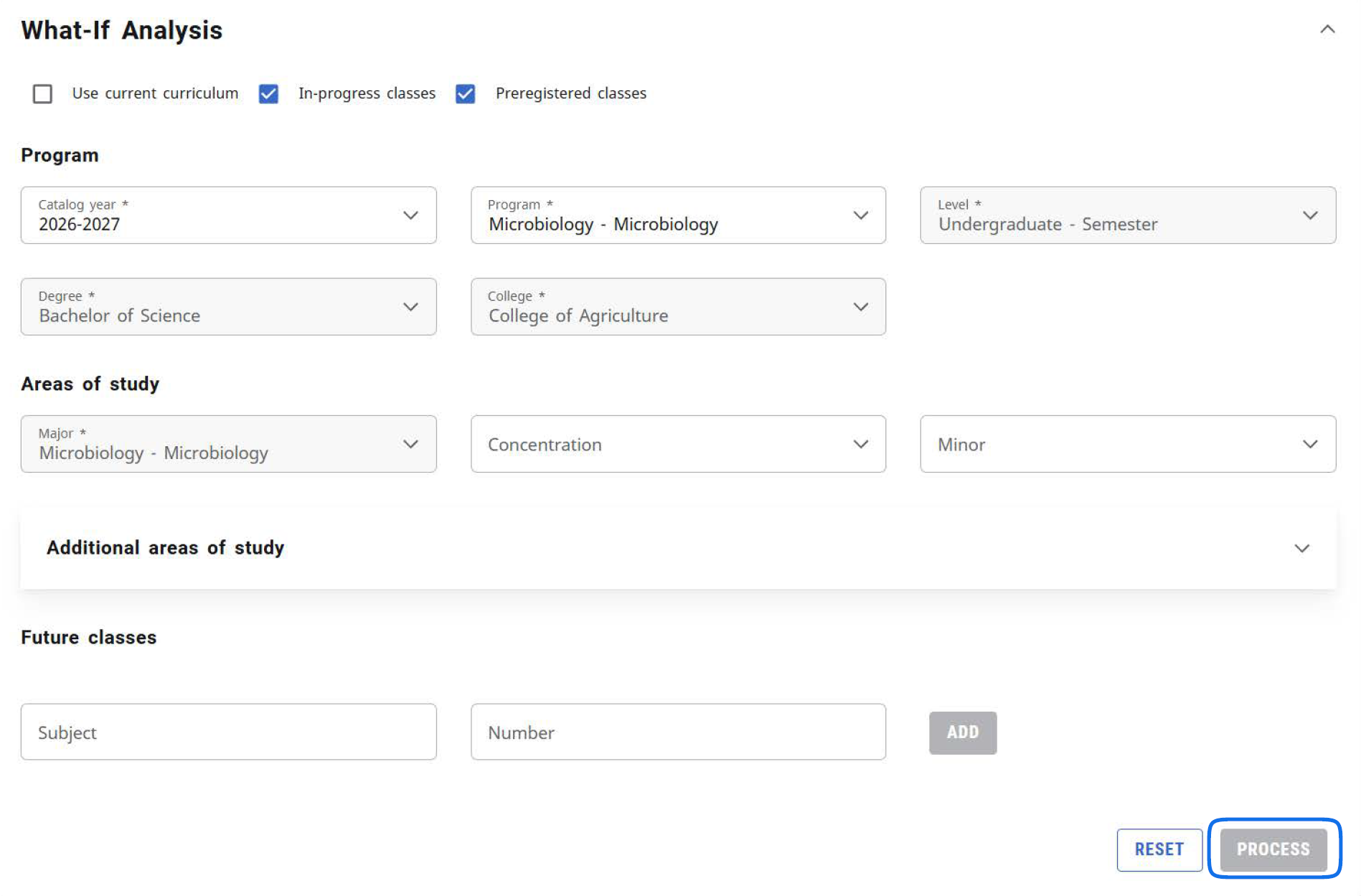
The What-If Analysis block will collapse once the analysis is processed.
- Select the down arrow to expand the What-If Analysis block.
- Select Reset at the bottom of the block.
- Use the drop-downs to select the appropriate information for the program the student is considering.
- Select Process.
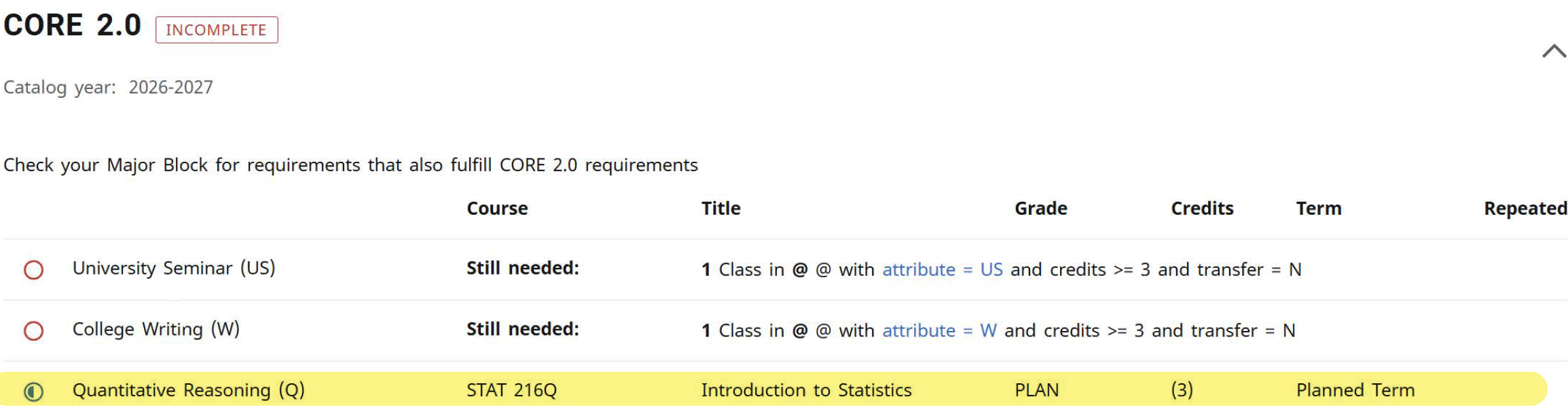
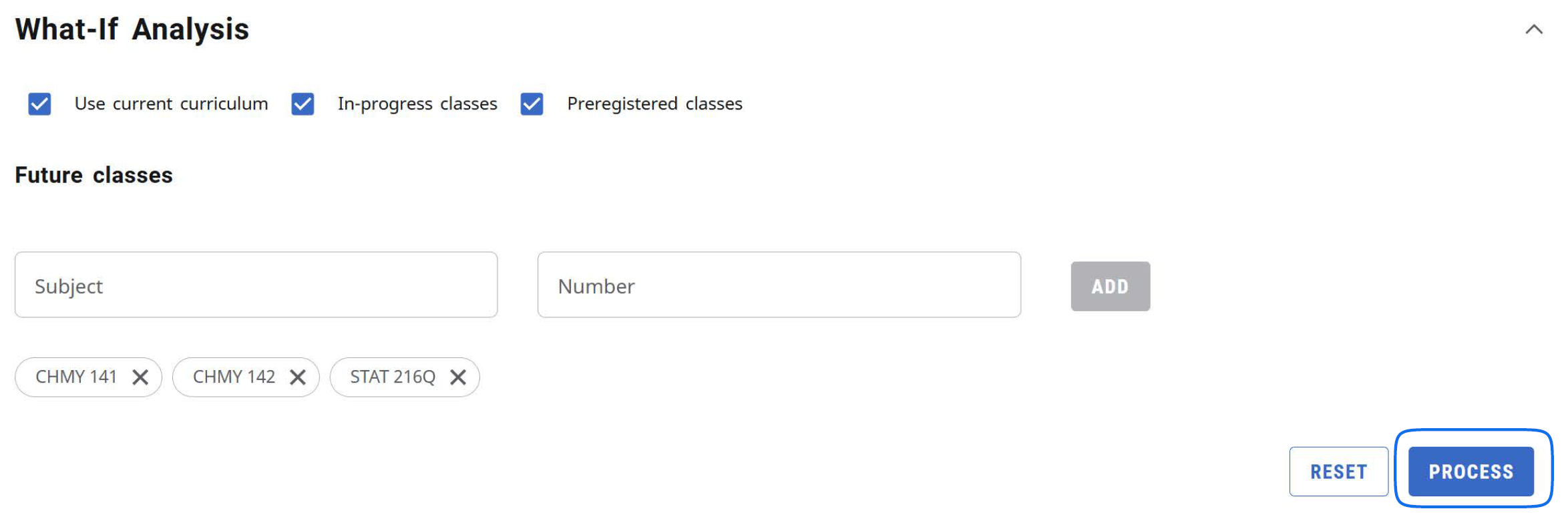
The Future Classes section in the What-If Analysis has replaced the Look Ahead tool. You can create a What-If Analysis to see if a course will meet a student’s current program requirements.
- Select What-If.
- Select the Use current curriculum check box.
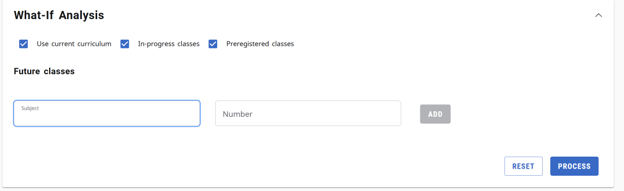
- Enter the Subject and Number for the class. Select Add.
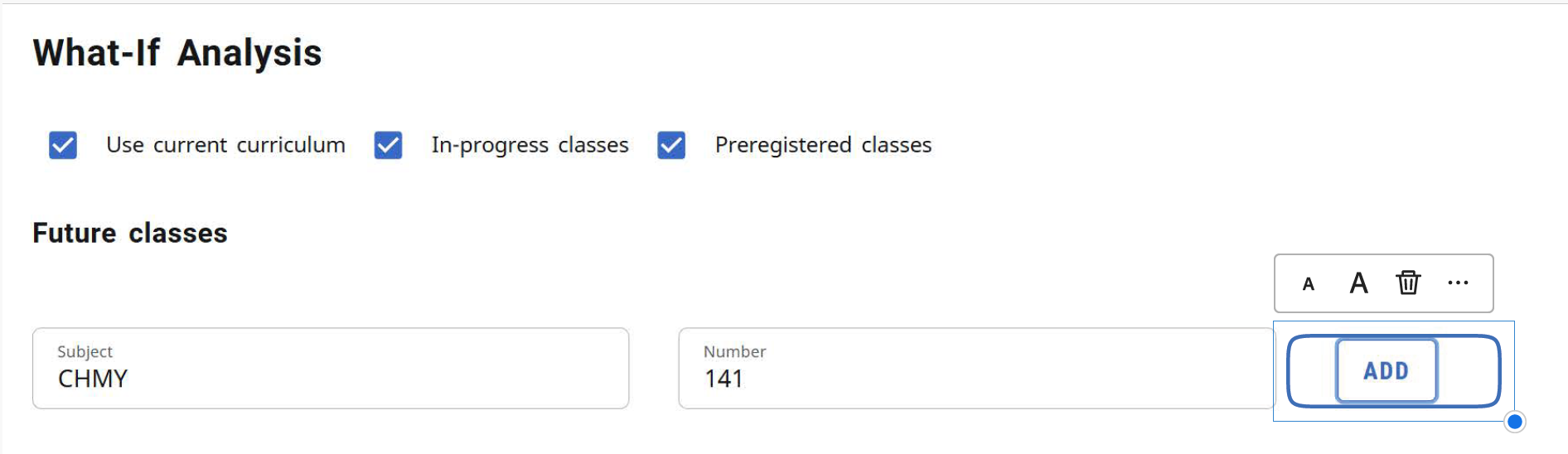
- Add as many courses as you wish to view on the audit. Select Process.
- The Student Audit will appear. Scroll through the audit to see where the courses appear
and if they meet the students’ program requirements.