

Notes in Degree Works
The Notes feature in Degree Works allows advisors and authorized staff to document advising conversations and other important information related to a student's academic progress. Notes provide a shared record of student interactions, helping support consistent advising while allowing users to create, edit, and view notes based on their access permissions.
Degree Works notes arepart of the student's educational record and are visible to the student and authorized university personnel. All notes should be professional, academically relevant, and FERPA compliant. Only document information related to advising, registration, curriculum, graduation, or other educational matters.
Adding Notes in Degree Works
- Navigate to MyMSU via the button below
- Click on "Log in to MyMSU (NetID)" and login to the secure area using your NetID and password
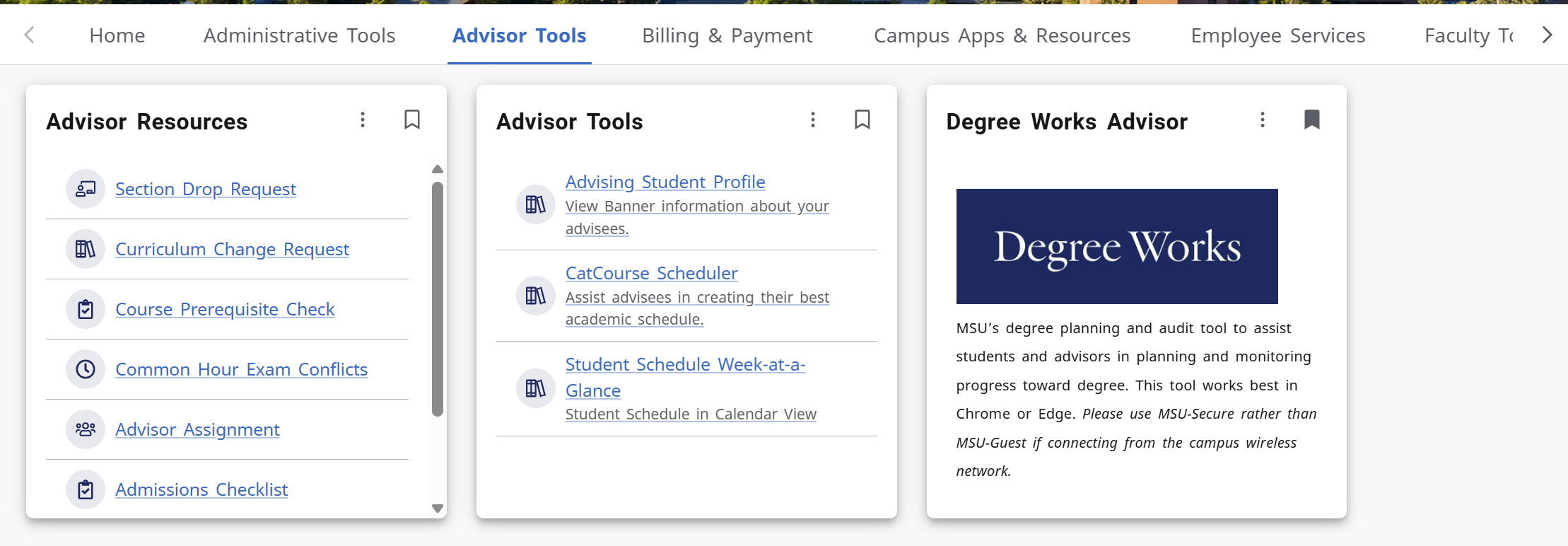
- Click on “Advisor Tools”
- Click on “Degree Works for Advisor”
- Enter the student ID for the worksheet you’re wanting to view
- If you do not have the student ID, click on “Advance Search” enter in the appropriate information and hit “search”
- Here you can search for student by:
- First and Last Name
- Curriculum Information
- Additional Criteria
- Here you can search for student by:
- Once you have the correct student selected, click on “select” to populate their worksheet.
- Navigate to the right-hand side and click on the three dots, this should open a pop-up
window and click on “Notes”

- This will display any current notes the student has on their DegreeWorks, to add a
new note click on “Add a New Note”
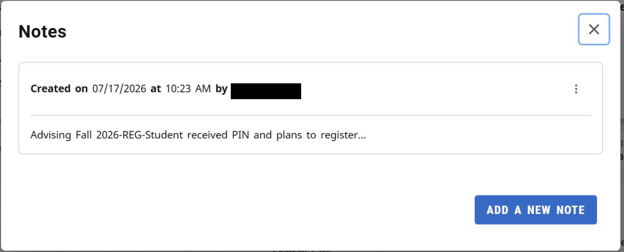
- Please select the appropriate pre-defined note from the drop-down menu, once you select your note, this should auto-populate in the description area.
- Please add any additional information appropriate to that note. Select “Save Note”
View, Delete, or Edit a Note
You can delete or edit notes you have written about a student within the Notes window. However, you can only view notes others have written about a student.
- From the Notes window, select the Ellipsis for the note.
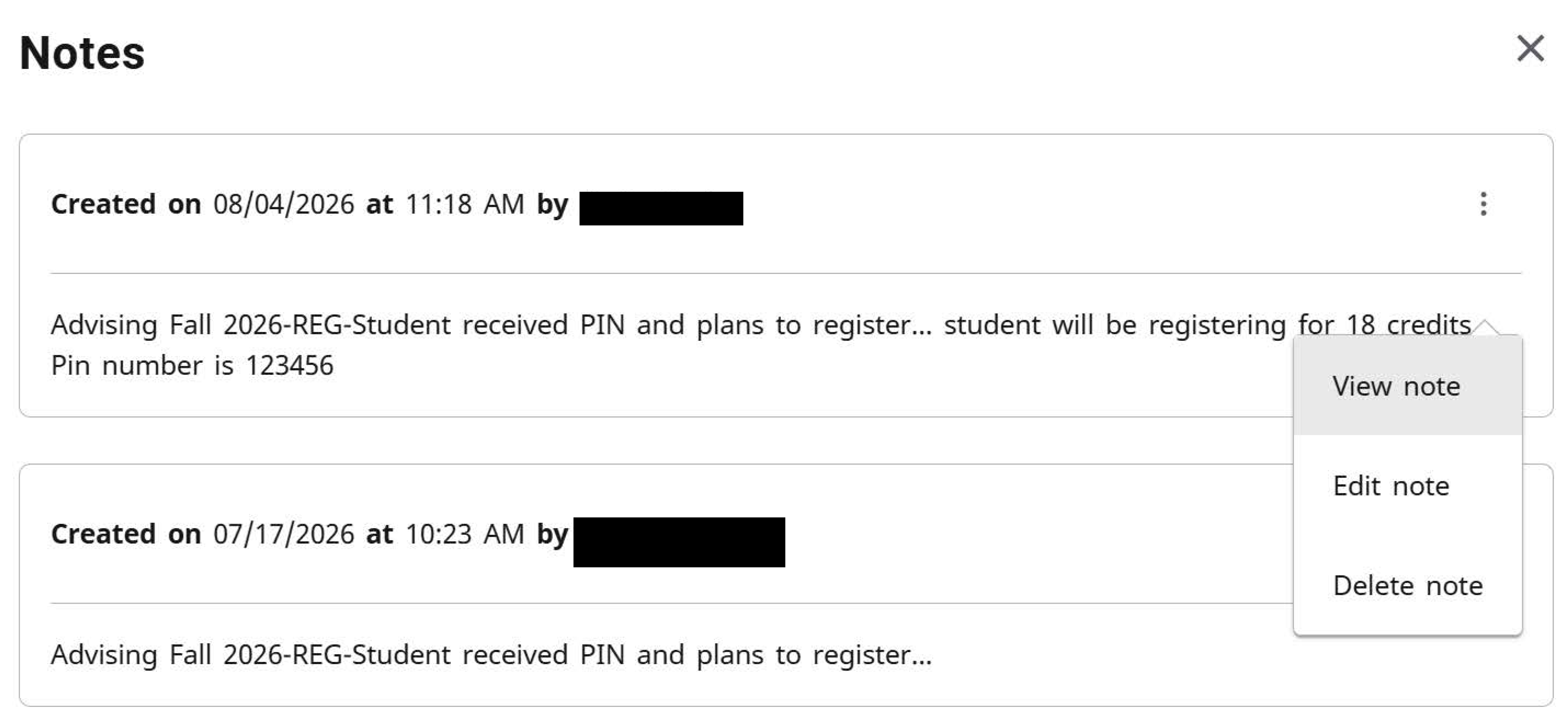
- Select View note, Delete note, or Edit note.
- Please note that you should only be deleting notes that you just entered into the students account that had an error in the note. Pleasedon’t deleteany historical notes even if they are no longer relevant.