

DegreeWorks Exceptions
The Degree Works Exception allows authorized users to modify a student's degree path when an approved academic exception cannot be accommodated through standard curriculum rules.The goal of every exception is to ensure a student's Degree Works accurately reflects an approved academic plan while maintaining the integrity of the university curriculum.Exceptions should only be entered when supported by university policy, approved departmental action, or other official documentation.
The Exceptions tab is restricted to designated Exception Managers who have completed Degree Works Exception training. Exceptions are made solely at the discretion of the head of the department, but they can designate individuals to have that authority to make exceptions on their behalf
The Office of the Registrar monitors all exceptions to ensure consistency and curricular integrity.
Degree Requirements: Degree block exceptions may only be entered by the Office of the Registrar.
Core Requirements: CORE 2.0 (General Education) exceptions may only be entered by the Office of the Registrar. If the issue involves a CORE requirement, stop and contact the Registrar's Office.Exceptions in either of these blocks will be removed by the Office of the Registrar who will then contact whoever made the exception.
Click here if you need Degree Works Exception Management Training
Note: Exceptions at the graduate level are only made by The Graduate School. Email Graduate Student Success with questions.
If you have any questions about exceptions management, please contact UGDegreeAuditors@montana.edu
Before Creating an Exception
✔ Verify the student record.
✔ Confirm departmental approval.
✔ Determine that an exception is actually needed.
✔ Select the simplest exception that accomplishes the goal.
Remember: Exceptions should solve academic issues and not create unnecessary complexity.Every exception should include a clear description.
Someone reviewing the student's audit months or even years later should understand:
- Why the exception was created.
- Who approved it.
- When appropriate, enough information to remove or modify it later.
Good descriptions include:
- Department approval
- Curriculum change
- Course title (for Special Topics or ELEC transfer work)
Example: Department approved substitution of BIOB 375 for BIOB 410 on 5/10/2026.Instead of: “Approved” or “Similar Content”
Exceptions should be used to address individual student circumstances and should not be used to resolve recurring curriculum or transfer evaluation issues. If the same exception is being applied repeatedly for an MSU course or academic program, contact the Degree Works Team to discuss a curriculum update. For recurring transfer equivalency issues, work with Admissions to submit a Direct Equivalency Form rather than creating repeated exceptions.
Also Allow
Add another course that should satisfy an existing requirement.
Common use:
- Transfer Credit
- Approved equivalents
- Transfer work coded as ELEC XXX. Always use WITH fields to target the correct transfer course.
Example: Subject: ELEC 100 with TITLE OF COURSE equals MSU Course Title
Apply Here
Move an existing course into a different requirement.
Common use:Student has completed STAT 216Q, DW has it in the elective block, but department has approved it to count under students' major.
Substitute
Replace one required course with another approved course.
Common use: Original requirement in students' major is M 273; department has approved the student to take M 274 as a substitution.
Force Complete
Mark a requirement complete when no other exception will work.
This should only be used after every other exception has been considered.
Common use:Prior degree or changes in curriculum enforced in prior catalog years.
Please note that a force complete does NOT satisfy credits. Those total credits still must be earned.
Remove Course/Change Limit
Remove a course or change a limit within a requirement
Common use:Change MUSI 195 from 2 credits to 3. This is only allowed when approved.
- Navigate to MyMSU via the button below
- Click on "Log in to MyMSU (NetID)" and login to the secure area using your NetID and password
- Click on “Advisor Tools”
- Click on “Degree Works for Advisor”
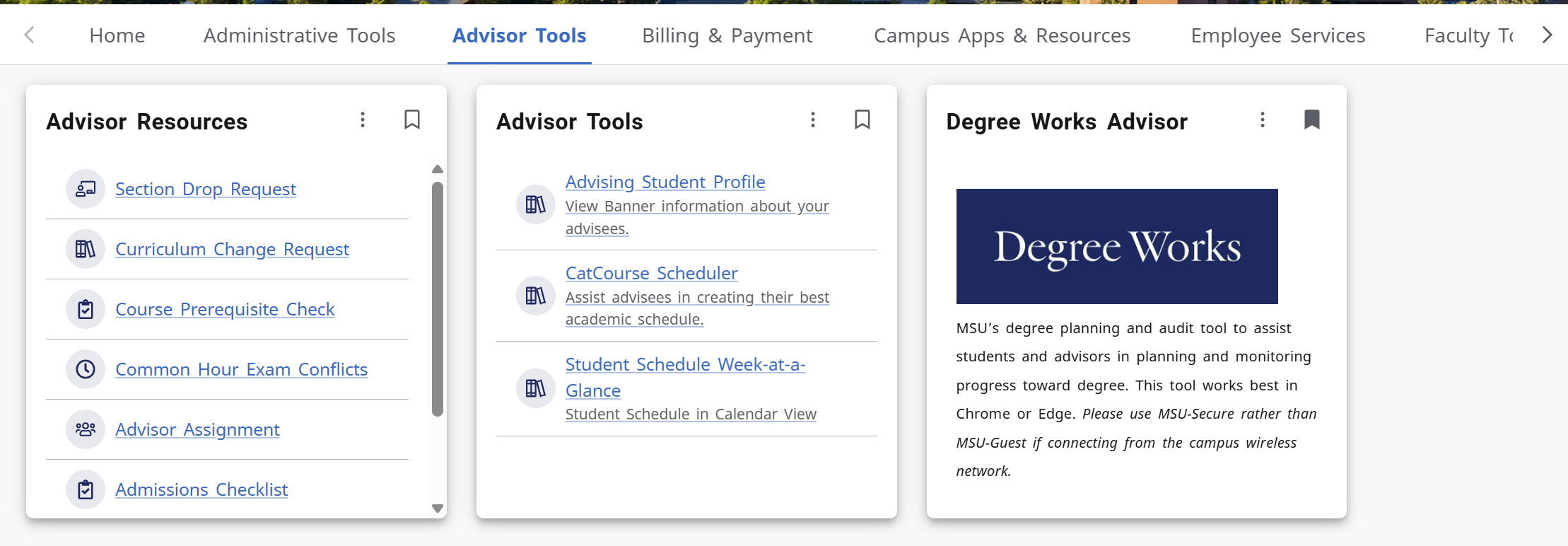
- Enter the student ID for the worksheet you’re wanting to view
- If you do not have the student ID, click on “Advance Search” enter in the appropriate
information and hit “search”
- Here you can search for student by:First and Last Name, Curriculum Information, Additional Criteria
- Open the student's worksheet and selectthe Exceptions tab.

- Find the appropriate block and course you are wanting to make the exception for.
- Click on the + button.

- Choose the appropriate exception. This will auto load the exception information.
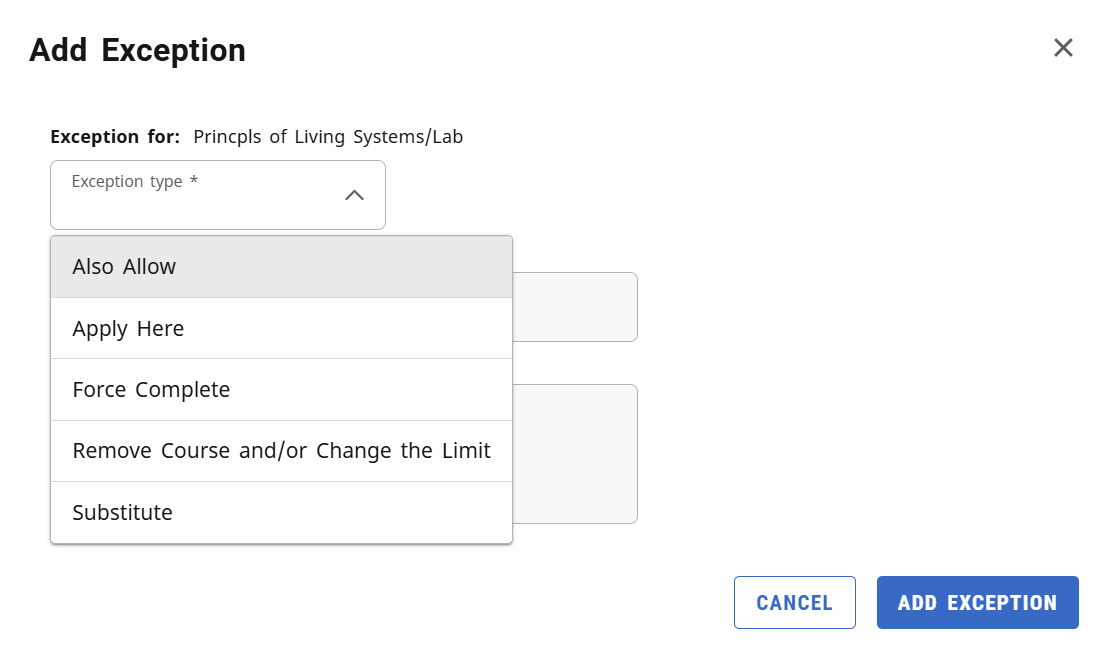
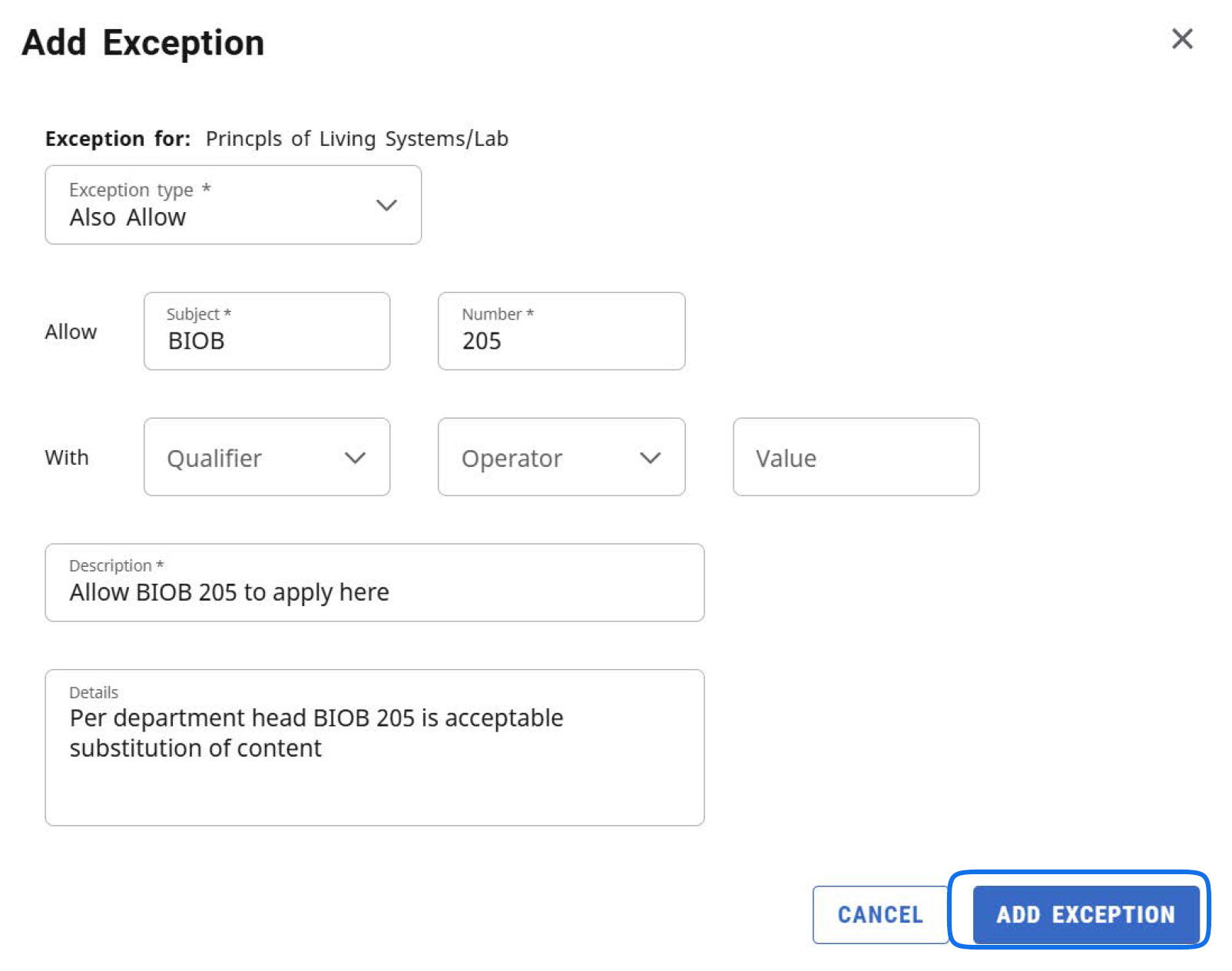
- Complete the exception information in the appropriate fields.
- Click the description box. This information will auto populate.
- Enter a detailed description of why this exception is being made.
- Example of a good, detailed description: PerDepartment head BIOB 205 is acceptable substitution of content.
- Click Add Exception.
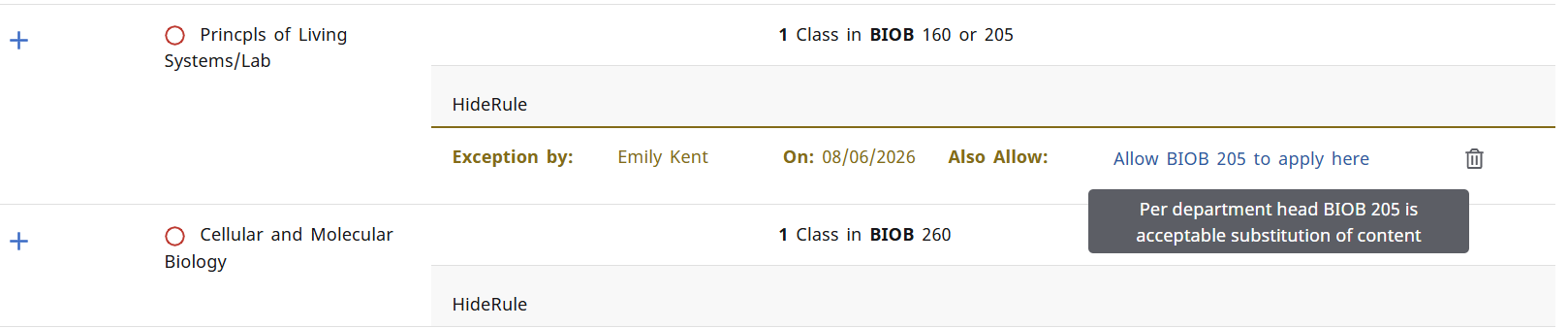
- Audit information should appear. Hover over description information to see detailed
description information.
- Scroll back to the top and select Worksheet. This should auto refresh the worksheet.

- Verify the exception in the worksheet.
- Check that the exception is displaying correctly
- Green checkmark displays when appropriate
- The exception appears in the exception list at the bottom of the worksheet
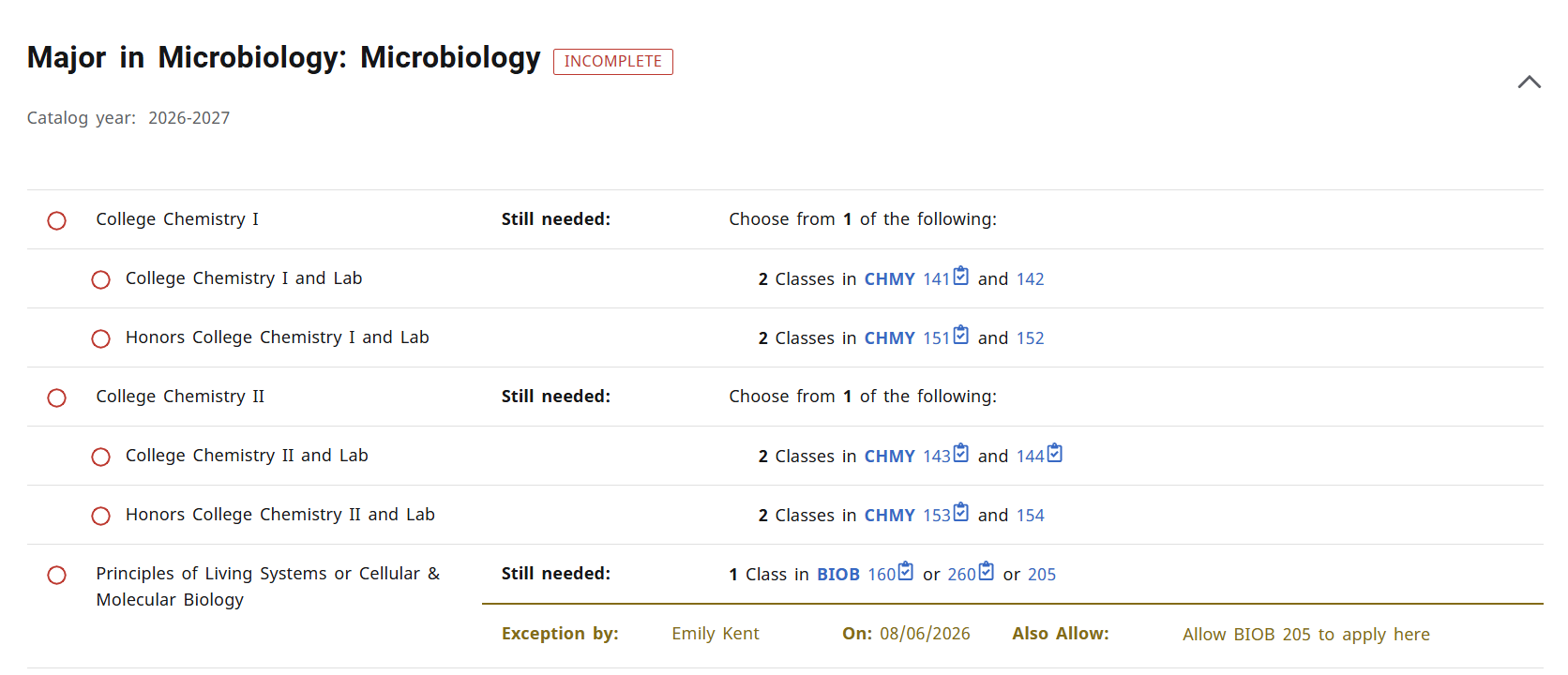
If an exception does not work correctly, remove it. Do not leave unnecessary exceptions on student records.
- Select the Exceptions tab.
- Locate the exception.
- Select the delete button.

- The audit will auto refresh and exception will be removed.